I have used codes:
27,112,0,25,250
27,112,48,55,121
27,112,32,25
27,112,0,64,240
But no success. Any suggestions?
<xct>27,112,0,25,250 works with that printer. If it is not working make sure the printer is set as ESC/POS
If printer is in HTML mode it will not work.
And I have tried keyhut but that printer is not listed.
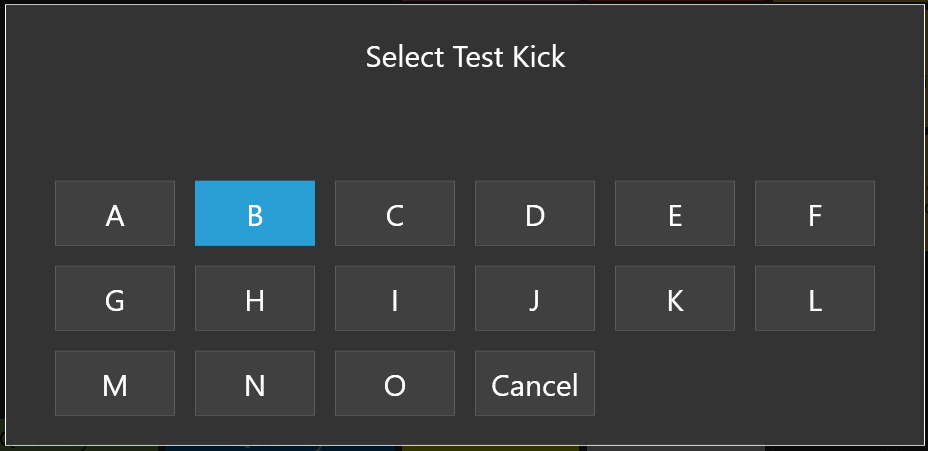
I spent a bit a while ago searching for Epson kick codes. I put together 15 unique ones I found. Attached is an import file that will generate 15 print jobs and print templates with different kick codes.
Be sure to configure each print job with your defined printer.
Map “TEST Cash Drawer Kick Ask” automation command where you see fit (nav screen or ticket).
Once mapped, click the automation command. Click each letter and see if one opens the drawer.
For what its worth, on installs using a TM-M30, this is the kick command we use:
<XCT>27,112,48,255,255
test_drawer_kick.zip (1.8 KB)
I can confirm that 27,112,0,25,250 works for this printer- I am currently using it.
You may need to check your print jobs and automations as well.
found letter C opens drawer but now what to do ?
check your messages 1234567890
for the epson tm-m30 the drawer kick that consistently works is:
<XCT>27,112,48,255,255
or the variant:
<XCT>27,112,0,25,250
once you find the letter that pops the drawer in the test templates, swap that into your actual print job’s template and map the automation command so it fires on payment/command button. the test step just tells you which code works — the real fix is putting that same XCT line into the template your drawer trigger uses.