Continuing the discussion from Help is needed with Set Widget Value action:
Using a program called AutoHotkey (AHK), we can control a webpage in the HTML Viewer Widget. AHK is an extremely powerful program and scripting language that can be used to control Windows and Applications for purpose of automation. It’s power doesn’t stop there - you can read more about it on the following sites:
Actively maintained and updated releases as well as documentation and support can be found here - this is where you should download to ensure you have the latest version:
Older versions (no longer maintained), documentation and support can also be found here:
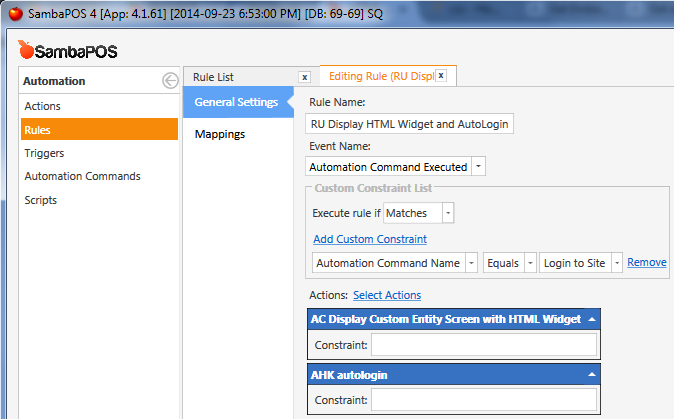
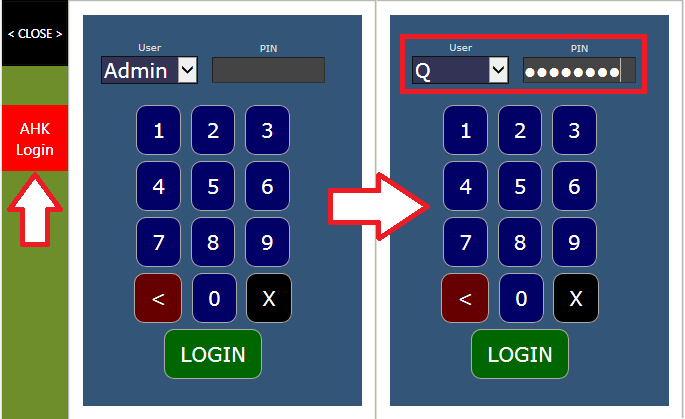
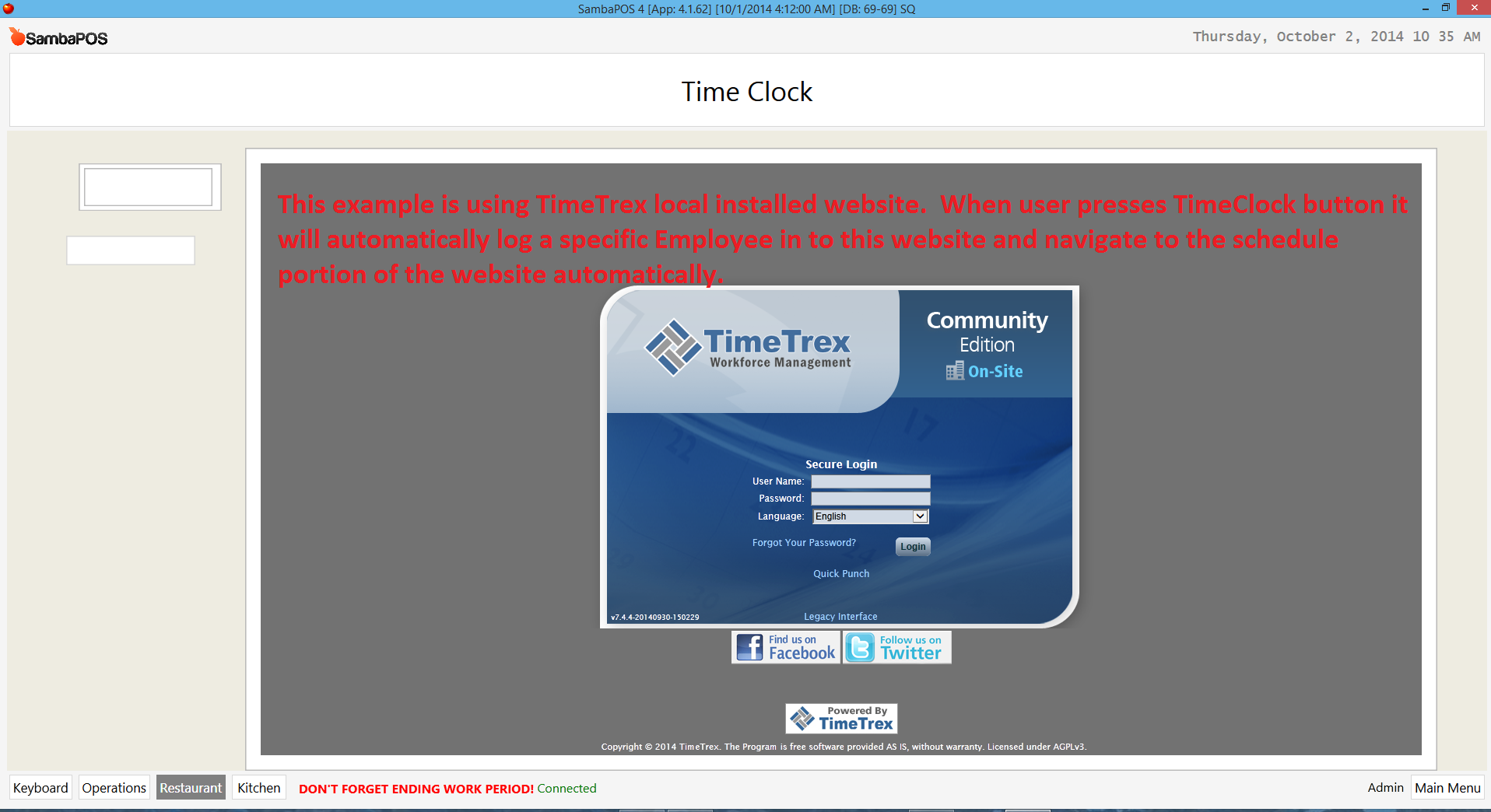
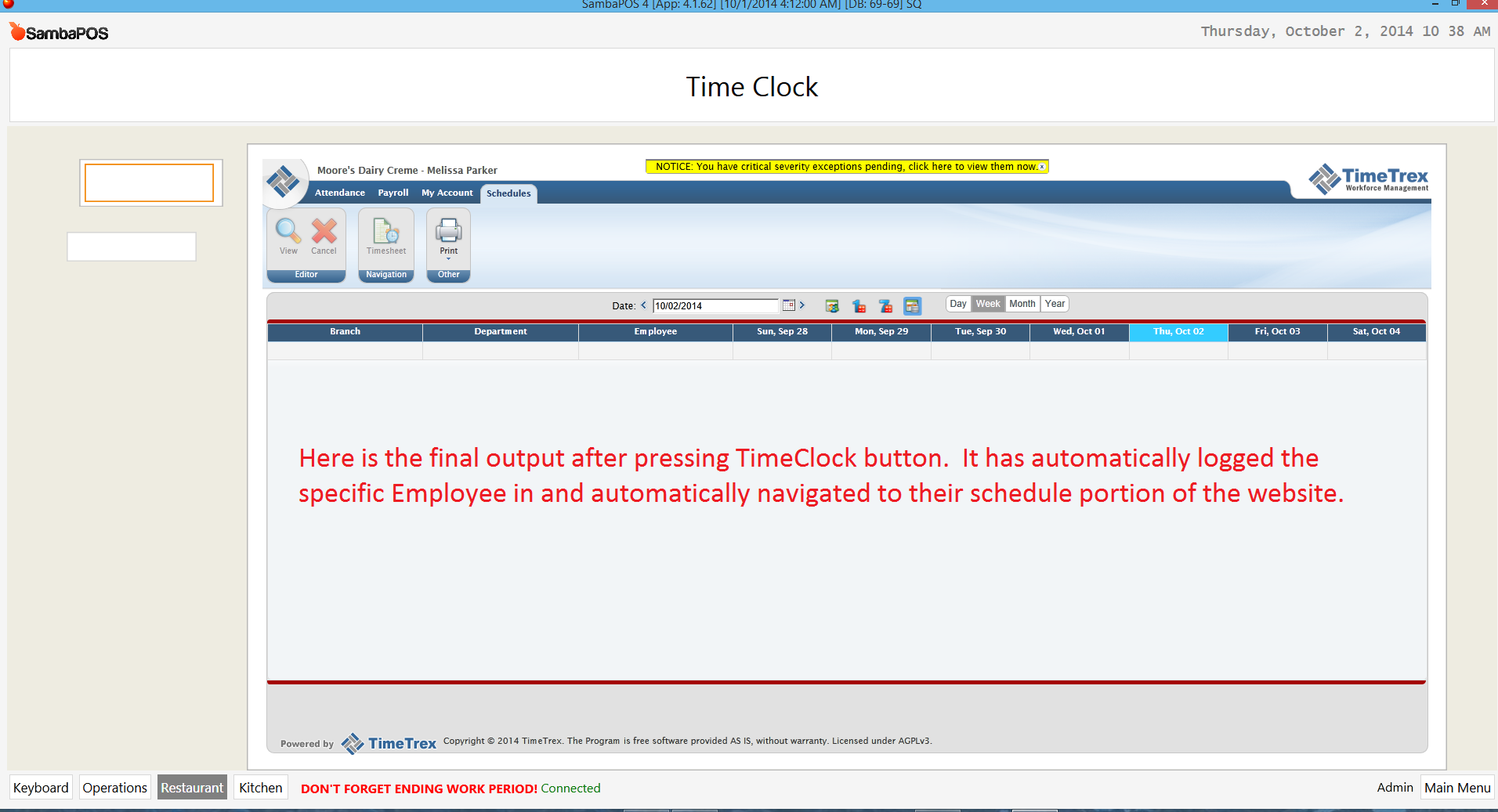
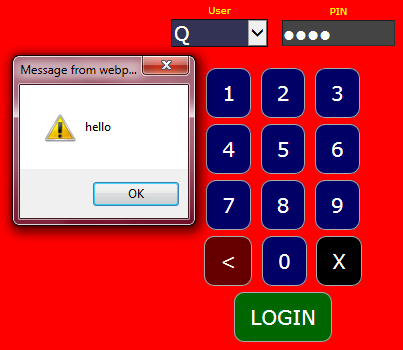
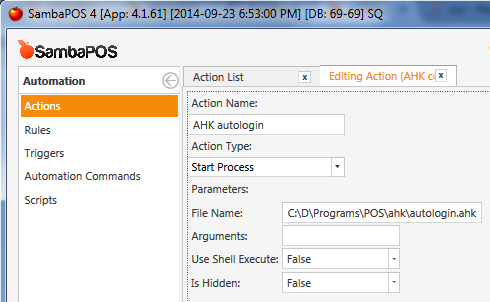
The following demonstrates controlling the HTML Viewer Widget to login to a site automatically, with no user interaction required. I placed this autologin.ahk in a Start Process and linked it to an Automation Command on the Entity Screen that contains the HTML Viewer Widget. When I click the button, the AHK script does it’s magic on the page!
NOTE: you don’t need to use an Automation Command button to perform this operation - you could simply call the Start Process action that fires the AHK script immediately after the load of the Entity Screen.
The AHK Script (autologin.ahk):
; AHK Version : 1.1.16.05 ANSI 32-bit (latest from http://ahkscripts.org)
; Date        : 2014-10-01
; Platform    : Windows 7 x64 (tested)
; Author      : Me, though most of it borrowed from the Forums
;
; Script Function:
;    Grab the HTML Viewer Widget and set Form Element Values
;   for auto-login to a site

#NoEnv  ; // Recommended for performance and compatibility with future AutoHotkey releases.
SendMode Input  ; // Recommended for new scripts due to its superior speed and reliability.
SetWorkingDir %A_ScriptDir%  ; // Ensures a consistent starting directory.

; // ACC Support Library (required)
; // http://www.autohotkey.com/board/topic/77303-acc-library-ahk-l-updated-09272012/
; // https://copy.com/oiLspOmEi0xVCg1F/Acc.ahk?download=1
#Include C:\D\Programs\POS\ahk\Acc.ahk

DetectHiddenWindows, On ; // Off by Default

; // get handle to Window Object, store in page
page := GrabWidget()
pagedoc := page.document
pagewin := pagedoc.parentWindow ; // same as page

; ////////////////////////////////////////////////////////
; //
; // Now start controlling the page
; //
; // This is where you change code to suit your needs
; //
; ////////////////////////////////////////////////////////

; // Navigate to the website you choose.
; // If the HTML Viewer Widget has the site already set in
; // the URL property, you can remove this Navigate() command
page.Navigate("http://www.google.com")

; // possibly add a Sleep (milliseconds) to wait for page-load
; Sleep 10000

; // the Form Element Names may need to change depending on the page
page.Document.getElementById("username").Value := "yourusername"
page.Document.getElementById("password").Value := "yourpassword"

; // one of the following should work to submit the Login - it will vary by page
; // if you know the Form Name, use Submit()
page.Document.getElementById("loginForm").Submit()
page.Document.getElementById("form").Submit()
; // otherwise, you can use a submit BUTTON with Click()
page.Document.getElementById("login-button").Click()


; ////////////////////////////////////////////////////////
; //
; // the main function, called at the beginning of the script
; //
; ////////////////////////////////////////////////////////

GrabWidget() {
    ; // get Active Window Handle, store in awindow
    WinGet, awindow, , A

    ; // get ControlList from Active Window, store in ActiveControlList
    WinGet, ActiveControlList, ControlList, A

    ; // Loop through ActiveControlList
    Loop, Parse, ActiveControlList, `n
    {
        iecontrol := A_LoopField
        ; // we are only interested in this Control
        if (iecontrol = "Internet Explorer_Server1") {

            ; // get IE Control handle, store in wb
            ControlGet, wb, Hwnd, , Internet Explorer_Server1, ahk_id %awindow%

            if ErrorLevel {
                MsgBox wb There was a problem getting the Widget %ErrorLevel%
                return
            }
            ;else {
            ;    MsgBox wb iecontrol %wb% is active.
            ;}
        }
    }

    ; // get handle to Window Object, store in ieobj
    ieobj := IE_GetWindow(wb)
    iedoc := ieobj.document
    iewin := iedoc.parentWindow ; // same as ieobj

    return ieobj
}

; ////////////////////////////////////////////////////////
; //
; // SUPPORT FUNCTIONS
; //
; ////////////////////////////////////////////////////////

IE_GetWindow(hWnd) {
   static IID := "{332C4427-26CB-11D0-B483-00C04FD90119}"
   IEServer := Acc_ObjectFromWindow(hwnd)
   pWindow := ComObjQuery(IEServer,IID,IID)
   Window := ComObj(9,pWindow,1)
   ;MsgBox, %    "Control HWND:`t" hwnd "`n"
   ;         .   "IEServer Interface:`t" ComObjType(IEServer, "Name") "`n"
   ;         .   "Window Raw Ptr:`t" pWindow "`n"
   ;         .   "Window Interface:`t" ComObjType(Window, "Name")
   return, Window
}
The script requires a support library called Acc.ahk which you will need to download, then include at the top of the script as I have done.
Acc Library:
Here: http://www.autohotkey.com/board/topic/77303-acc-library-ahk-l-updated-09272012/
More directly, here: https://copy.com/oiLspOmEi0xVCg1F/Acc.ahk?download=1
SambaPOS setup
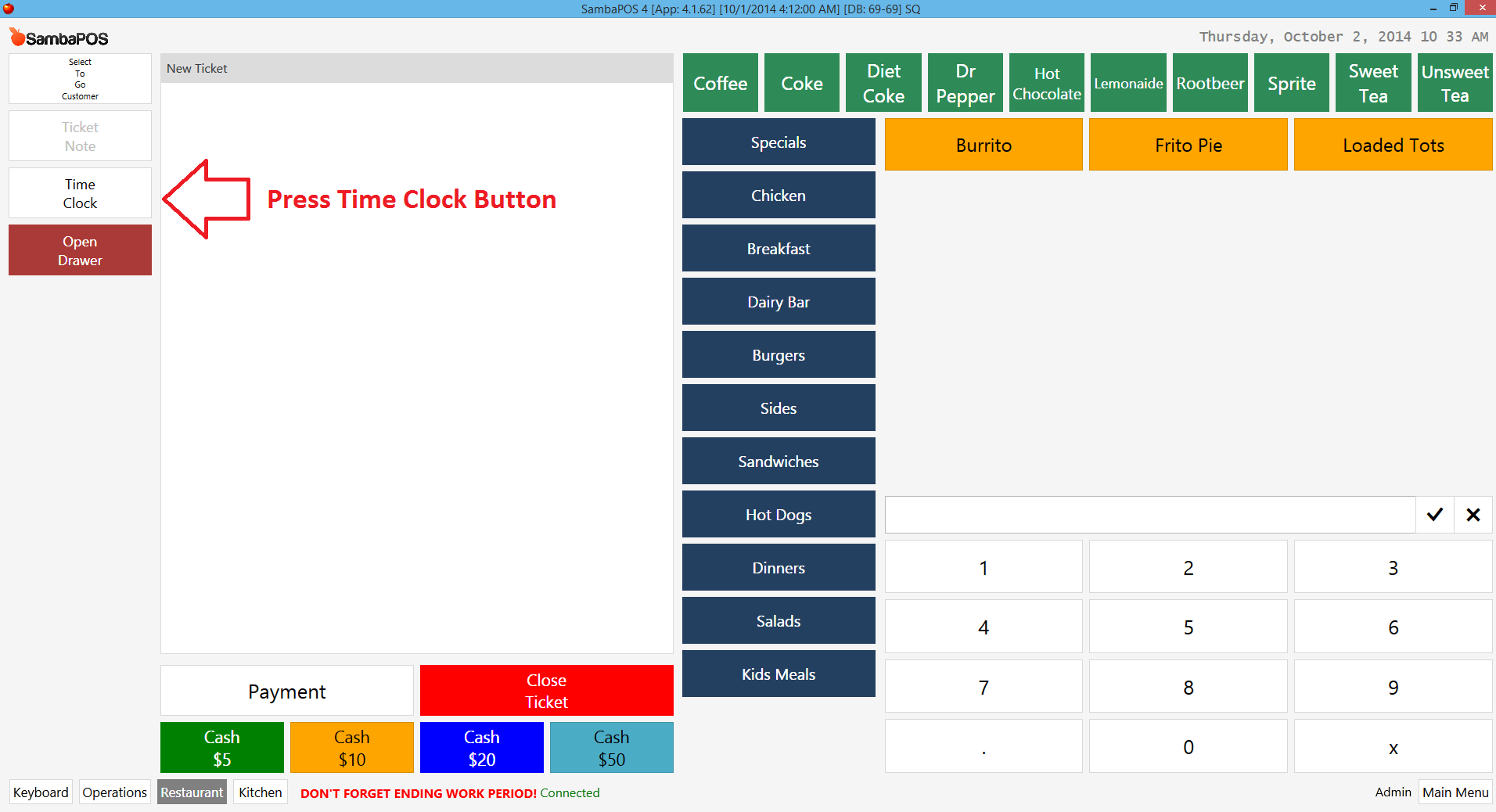
FLOW:

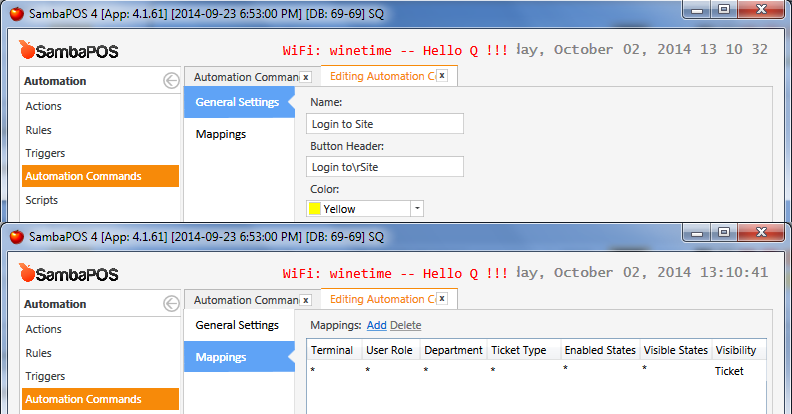
Automation Command:
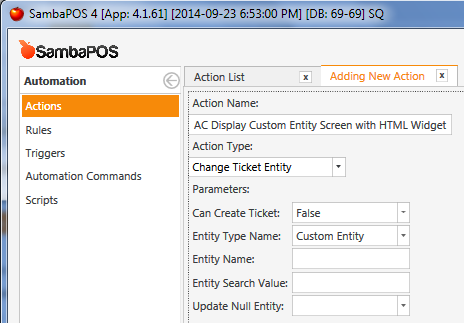
Action - Display Entity Screen:
Action - Start Process to Fire the AHK script:
Rule - Capture Automation Command and Fire Actions: