Hey all… I am looking to make a button that will just take $1 of of any item. So I can just hit an item, and then choose “$1 off”. Do you think the simplest way would be to make a “modifier” and set it for NEGATIVE one? And then apply that to a particular category?
Would work, can set max on tag to 1 so it can only be applied once to a product…
Thank you for pointing out the “max” option. Good thinking! Also, is there an “easy” way to make this button appear only on Wednesdays?
Create a Rule for Order Tagged event and set the Constraints to
Order Tag Value Equals DollarOff (whatever the Tag is named)
{DATE:ddd) Not Matches Wed
Add an Action to the Rule to Untag Order using the Tag Group Name and Tag Name, so that it removes the Tag when the Day is not Wed.
There is no way to hide an Order Tag button when it is mapped to products.
Ok, so in “event name” I chose “Order Tagged”. Then I was able to do the “Order Tag Value Equals DollarOff (whatever the Tag is named)”. I then manually added the “date” part. Then I made an Action to untag (order tag name) dollardiscount, but I am not sure what you mean by “Group Tag Name”. All I have for options is “Order Tag Name” and “Order Tag Value”.
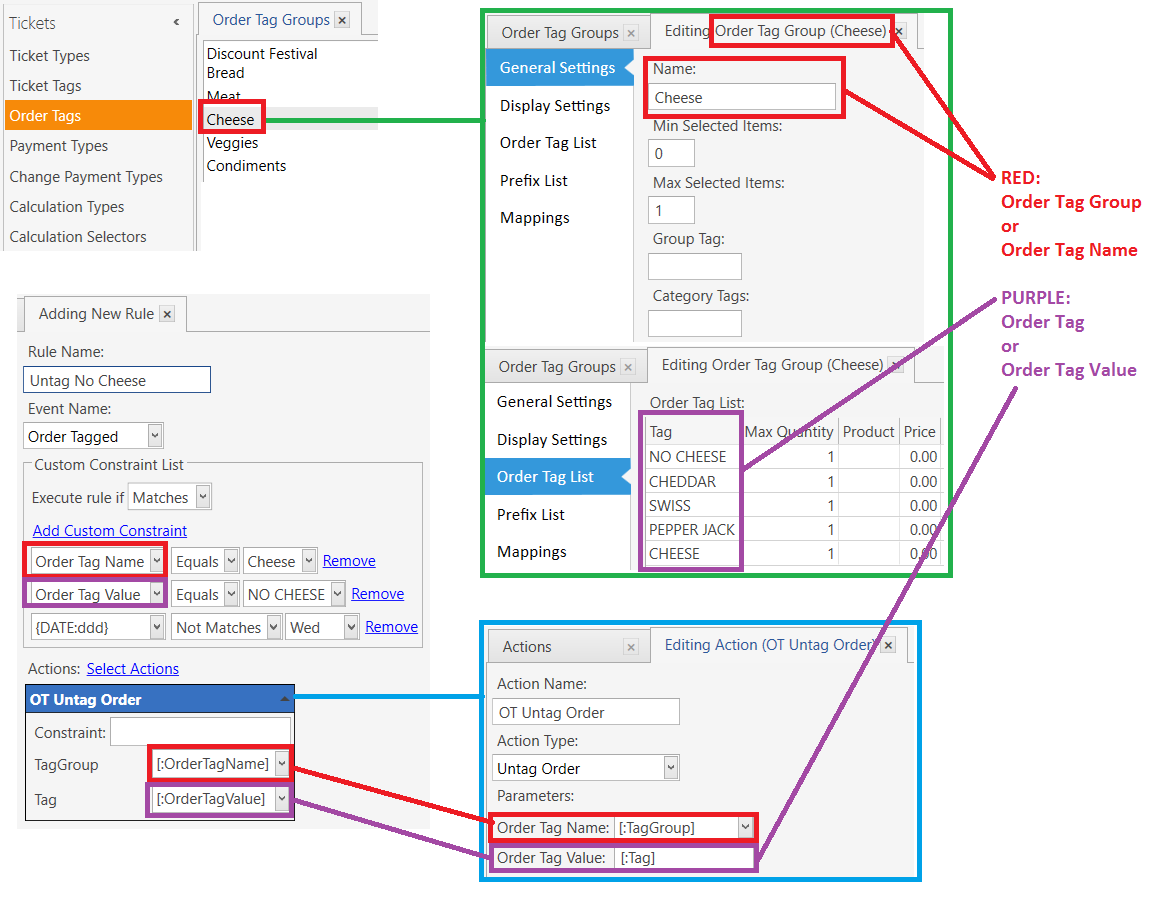
The suggestion I gave merely untags the Order when the day is not Wednesday. But it will not hide the Order Tag button.
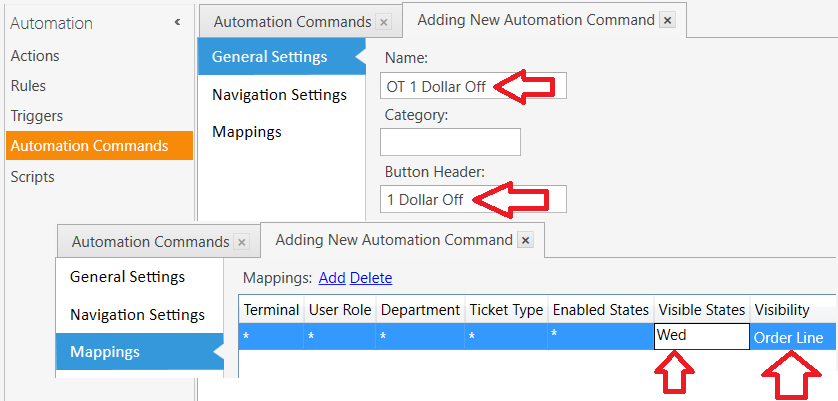
The only way to do that would be to use an Automation Command mapped to Order Line, and set Visible and/or Enabled State to “Wed”.
Then you handle the event for Automation Command Executed to fire a Tag Order Action.
It would go like this:
##Order Tag(s)
NOTE: the Order Tag Group is not mapped to any Products, so you will not see this Order Tag button on the screen. Instead we will use a
Tag OrderAction to apply the Order Tag to the Order.
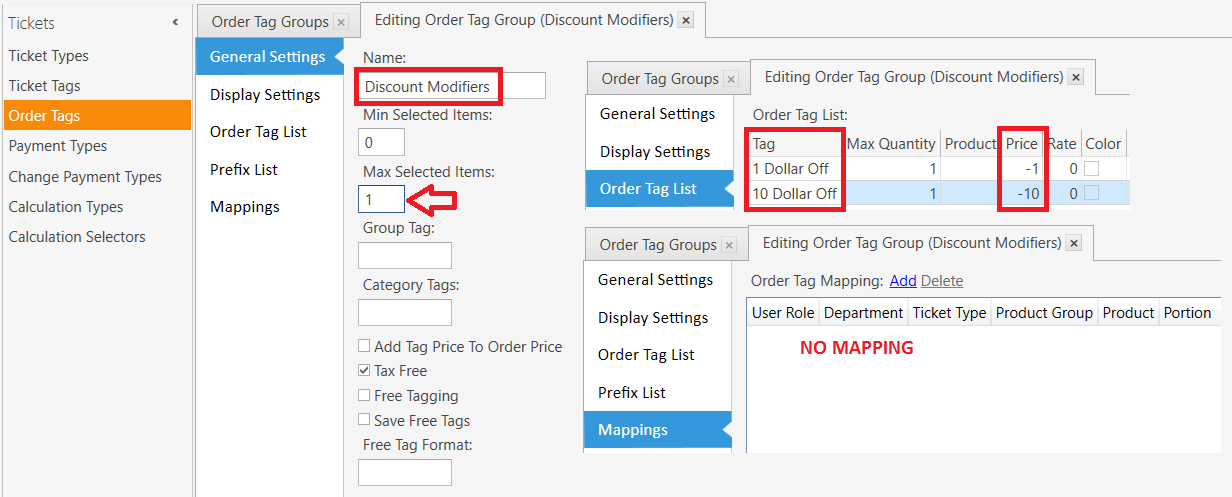
##Automation Command - 1 Dollar Off Button
Set the Visible and/or Enabled State to the day you want the button to be available. If you want it to be enabled on more than 1 day, use a comma-separated list, such as: Sat,Wed
##Action - Update Order State
We will use this action to set the Order State to the current day.

##OT Update OrderDay Order State
[Update Order State](Action)##
| Action Name: | OT Update OrderDay Order State |
| Action Type: | Update Order State |
| State Name: | [:stateName] |
| Group Order: | |
| Current State: | |
| State: | [:state] |
| State Order: | |
| State Value: | |
##Action - Tag Order
We will use this action to Tag the order with 1 Dollar Off
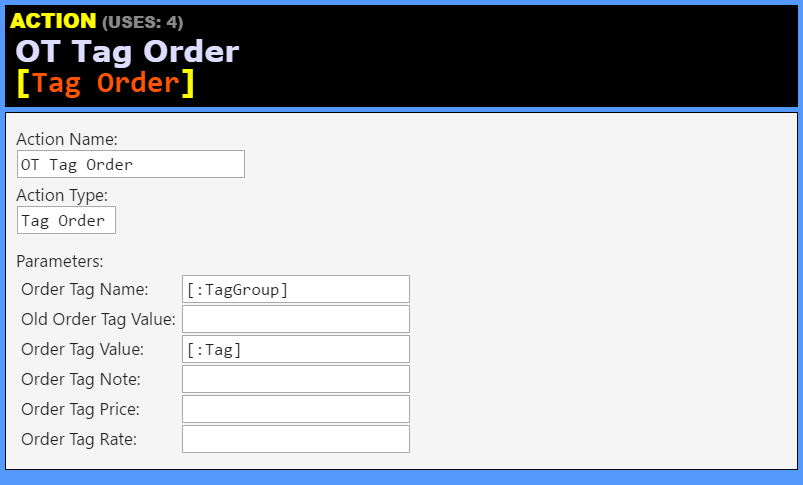
##OT Tag Order
[Tag Order](Action)##
| Action Name: | OT Tag Order |
| Action Type: | Tag Order |
| Order Tag Name: | [:TagGroup] |
| Old Order Tag Value: | |
| Order Tag Value: | [:Tag] |
| Order Tag Note: | |
| Order Tag Price: | |
| Order Tag Rate: | |
##Rule - Order Added to Ticket - Update OrderDay State
This Rule invokes the Update Order State Action to set the OrderDay State to the current day using {DATE:ddd}.
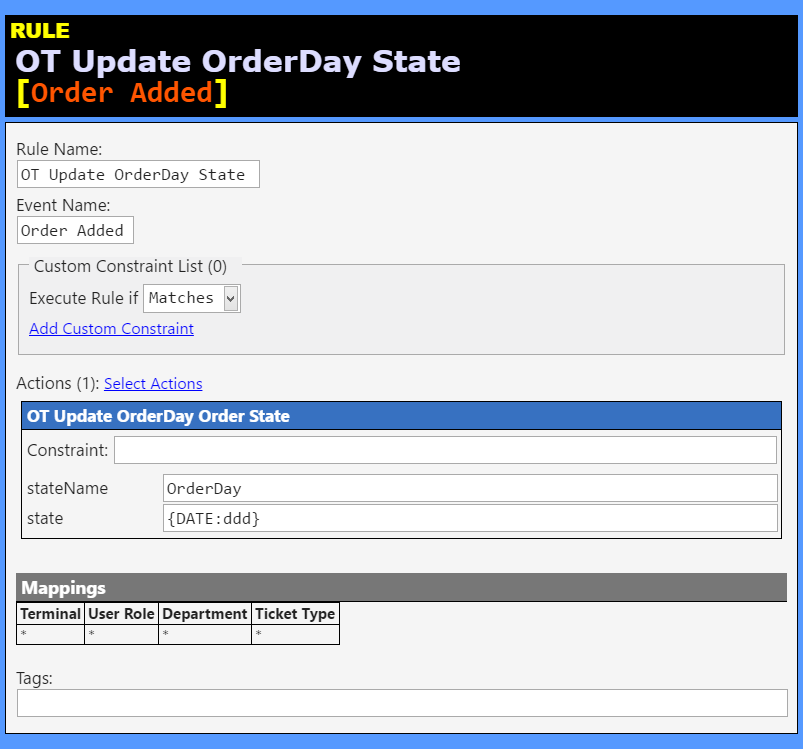
##OT Update OrderDay State
[Order Added](Rule)##
| Rule Name: | OT Update OrderDay State |
| Event Name: | Order Added |
| Rule Tags: | |
| Execute Rule if: | Matches |
##Actions (1):##
OT Update OrderDay Order State
Constraint: (none)
| stateName: | OrderDay |
| state: | {DATE:ddd} |
##Mappings##
Mappings
| Terminal | User Role | Department | Ticket Type |
* | * | * | * |
##Rule - Automation Command Executed - button Clicked - Tag Order
This Rule handles the button-click of the 1 Dollar Off Automation Command, and applies the 1 Dollar Off Order Tag.
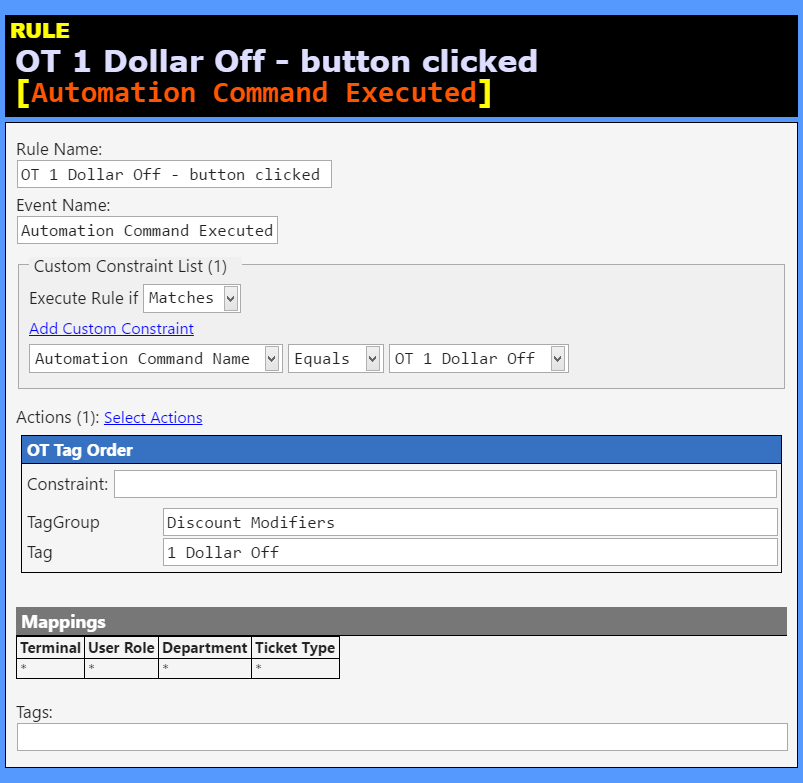
##OT 1 Dollar Off - button clicked
[Automation Command Executed](Rule)##
| Rule Name: | OT 1 Dollar Off - button clicked |
| Event Name: | Automation Command Executed |
| Rule Tags: | |
| Execute Rule if: | Matches |
Automation Command Name | Equals | OT 1 Dollar Off |
##Actions (1):##
OT Tag Order
Constraint: (none)
| TagGroup: | Discount Modifiers |
| Tag: | 1 Dollar Off |
##Mappings##
Mappings
| Terminal | User Role | Department | Ticket Type |
* | * | * | * |
##FLOW
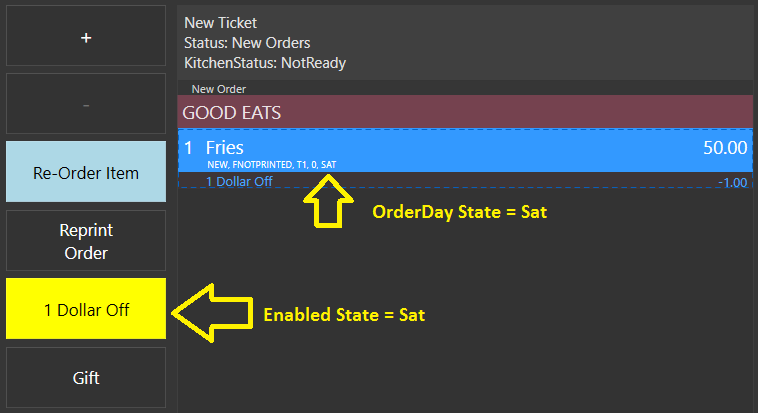
Whenever an Order is added to a Ticket, it automatically has it’s OrderDay State set to the current day using {DATE:ddd}.
In this example, today is Saturday, and you can see the SAT Order State below the Order. I also have the Enabled State set to Sat on the Automation Command for the purpose of this demo so we can see and use the button.
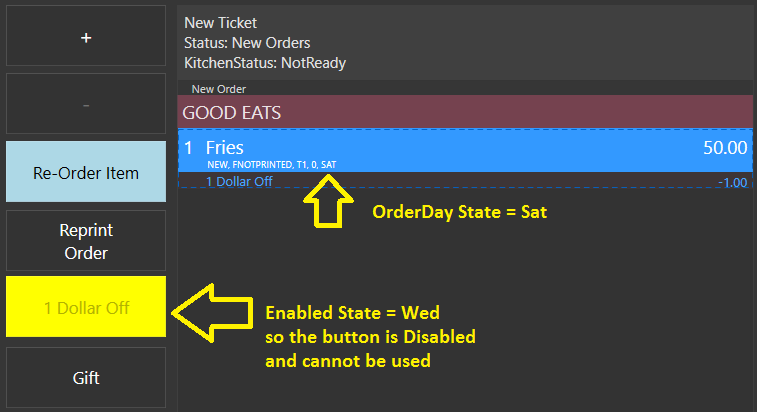
And this is what it looks like if I have the Enabled State of the Automation Command set to another value such as Wed. Being that today is Saturday, the button is disabled.
Hmmm… I think I was just looking for it to appear only on a certain day (or time). I can see where such a thing would be useful in a lot of scenarios. Although I can think of a few situations where this tutorial would come in handy. Thank you for the information.
Like I mentioned, if you set the Visible State of the Automation Command to Wed and it is not Wednesday today, then the button will disappear entirely. I prefer to just Disable the button by setting the Enabled State, but the choice is up to you.