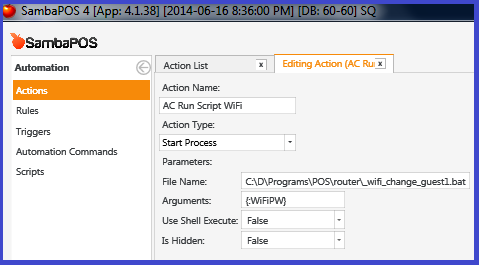
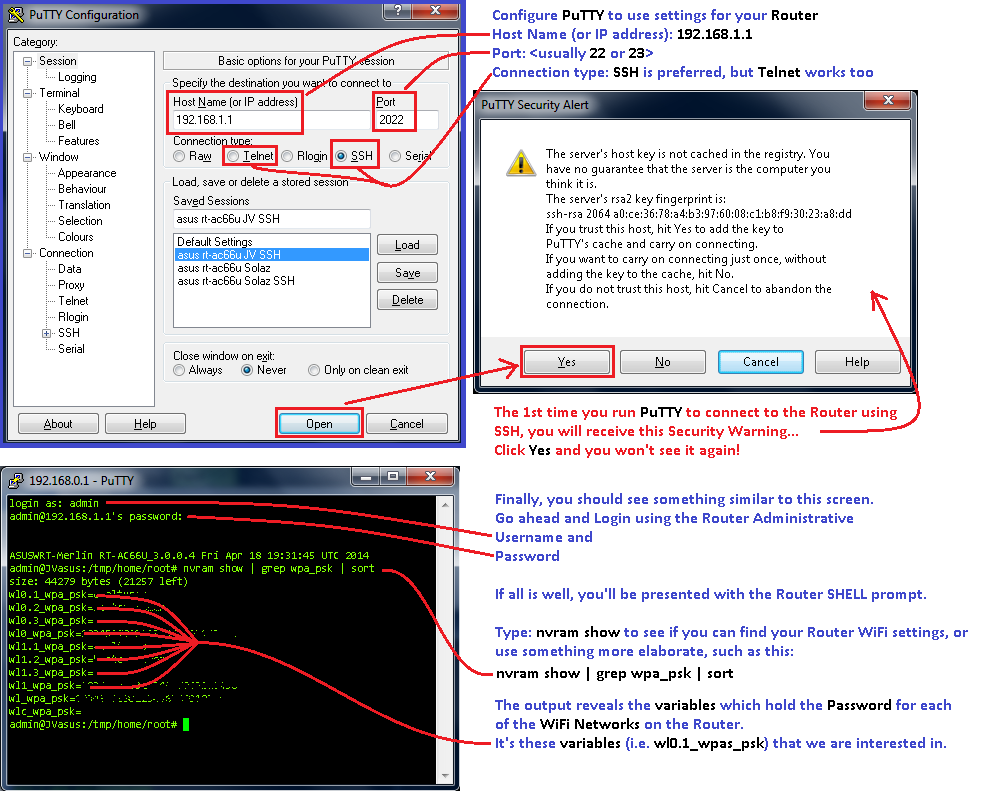
This Tutorial aims to provide a simple method to change the WiFi Access Password, and save the Password within SambaPOS so that we may use it for Display or Printing purposes.
::::: SETUP Begin ::::::::::::::::::::
Automation Command - WiFiPW Update
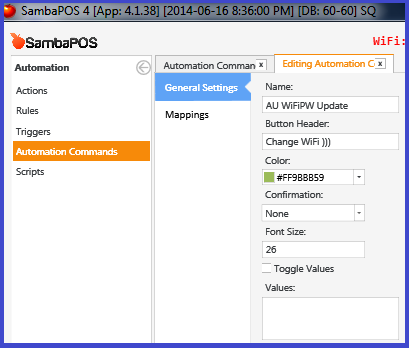
Automation Command can be mapped as a button (i.e. to the Ticket screen), or no mapping is necessary if you want to place it on an Entity Screen or Account Screen.
Name: AU WiFiPW Update
Button Header: Change WiFi )))
Mappings: (choose what is suitable for your setup)
Action to Update Program Setting for variable WiFiPW:
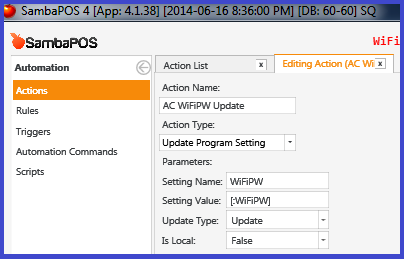
Action Update Program Setting will store the password in the DB which can later be referenced using notation {:WiFiPW}.
Name: AC WiFiPW Update
Type: Update Program Setting
Setting Name: WiFiPW
Setting Value: [:WiFiPW]
Update Type: Update
Is Local: False
Action to Start Process to launch Browser: (optional)
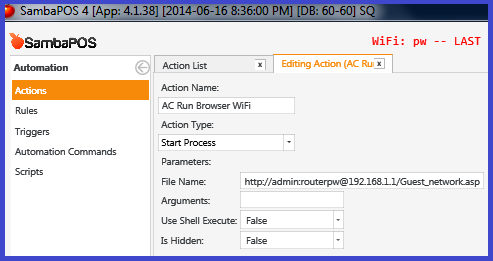
Action Start Process can launch an external program or open a file through association. In this case, we use an URL as the File Name which should cause the Default Browser to Launch, and go to the page specified by the URL.
Using the following notation in the URL can be used for some password-protected pages to pass the credentials (username:password) to the page, which will bypass the requirement to login manually.
http://username:[email protected]/
Name: AC Run Browser WiFi
File Name: http://admin:[email protected]/
Arguments: ``
Use Shell Execute: False
Is Hidden: False
Rule to capture click-event of Automation Command and fire our Actions:
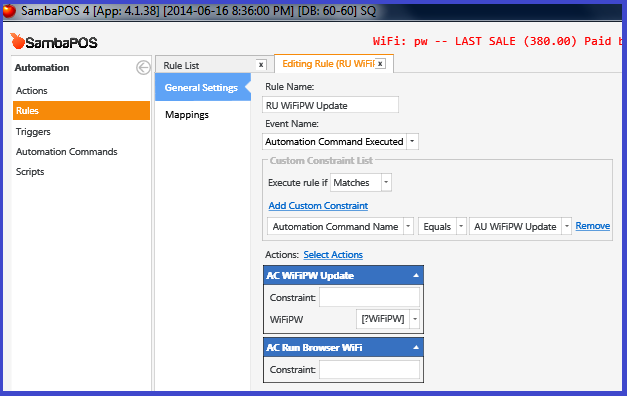
Name: RU WiFiPW Update
Event Name: Automation Command Executed
Custom Constraints: Execute rule if Matches
Automation Command Name Equals AU WiFiPW Update
Actions:
Name: AC WiFiPW Update
Constraint: ``
WiFiPW: [?WiFiPW]
Name: AC Run Browser WiFi
Constraint: ``
::::: SETUP End ::::::::::::::::::::
The notation [?WiFiPW] used in the above Action will invoke a prompt for user-input. This could even be written as something like: [?Please Enter a New Password for the Guest Wi-Fi].
The input is then passed to the Action which updates the Program Setting named WiFiPW, which can then be referenced with the notation {SETTING:WiFiPW}.
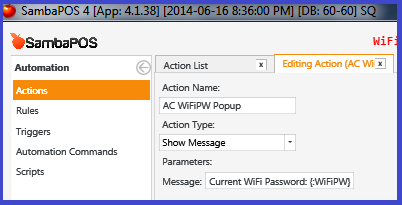
For example, the Show Message Action can reference this Program Setting to display the value stored in WiFiPW, using the reference notation {SETTING:WiFiPW}:
Even this Printer Template (which is for a Pole Display) can reference the password:
<XCT>31,20,17
<C>:: WiFi Password ::
<C>{SETTING:WiFiPW}
NOTE: There is a more advance method in a post near the end of the thread…
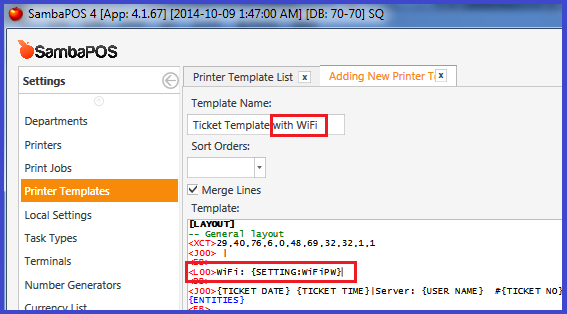
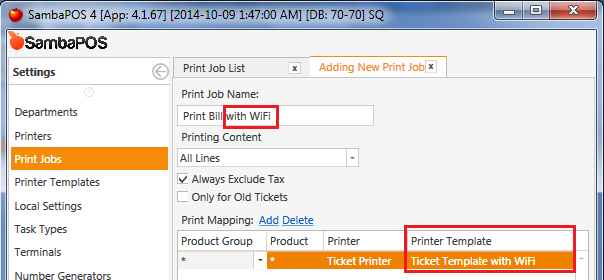
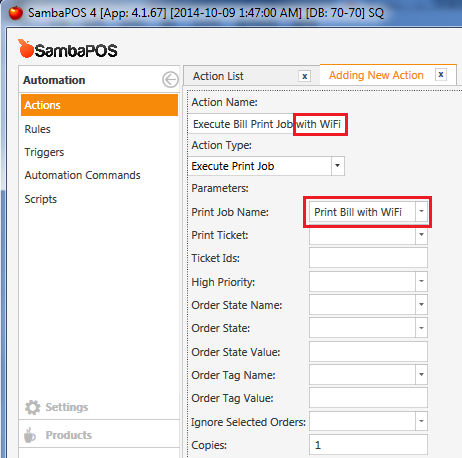
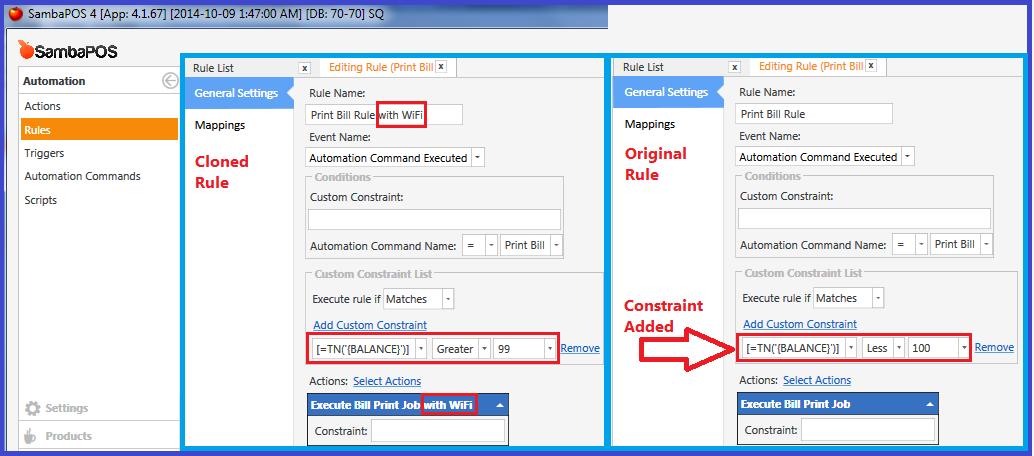
 To Clone something (an Action, Rule, Template, Print Job, etc.) simply Right-click on the object and select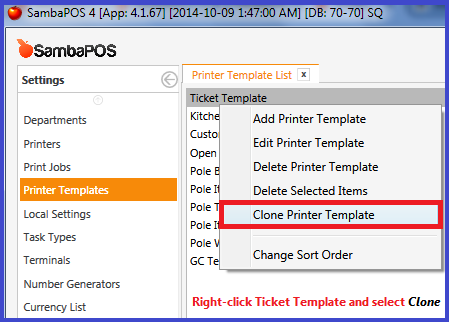
 . I’ve been wanting to be able to do this for a long time… thanks again