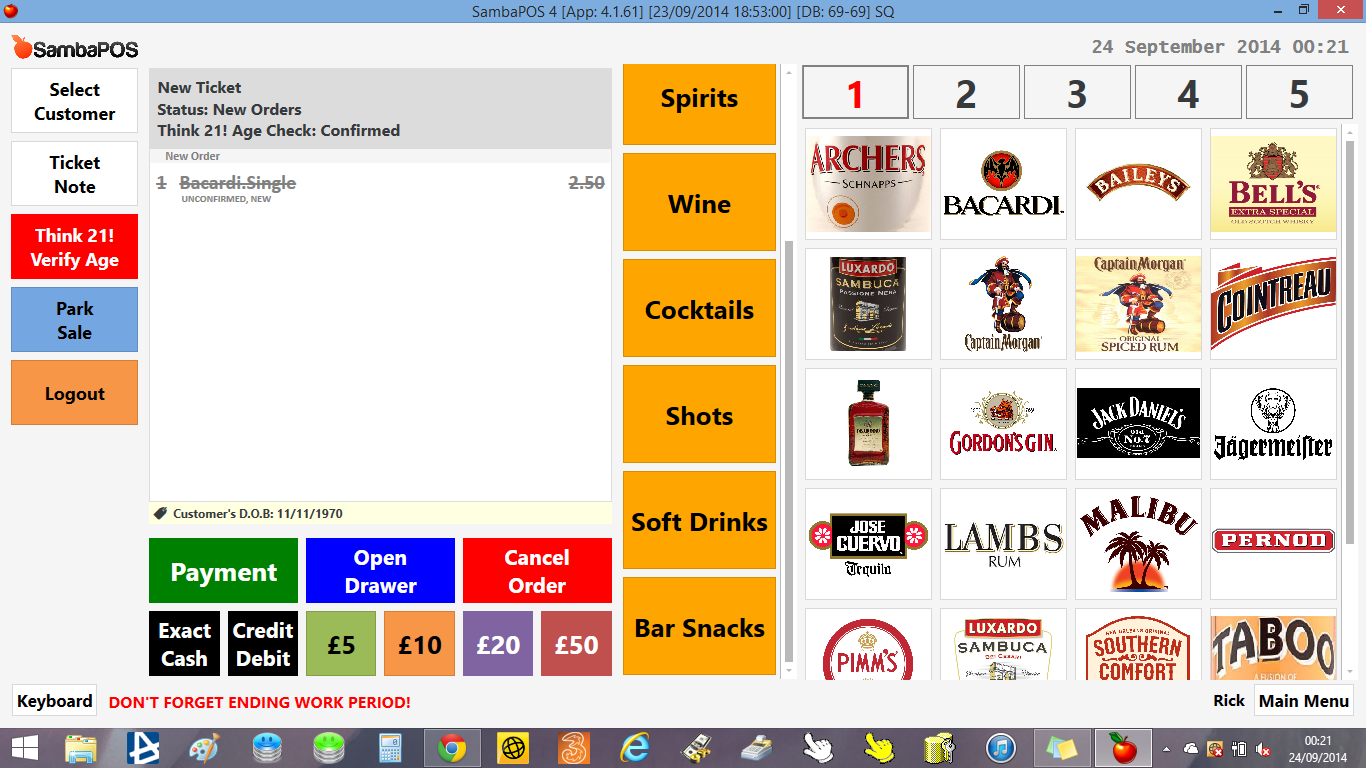
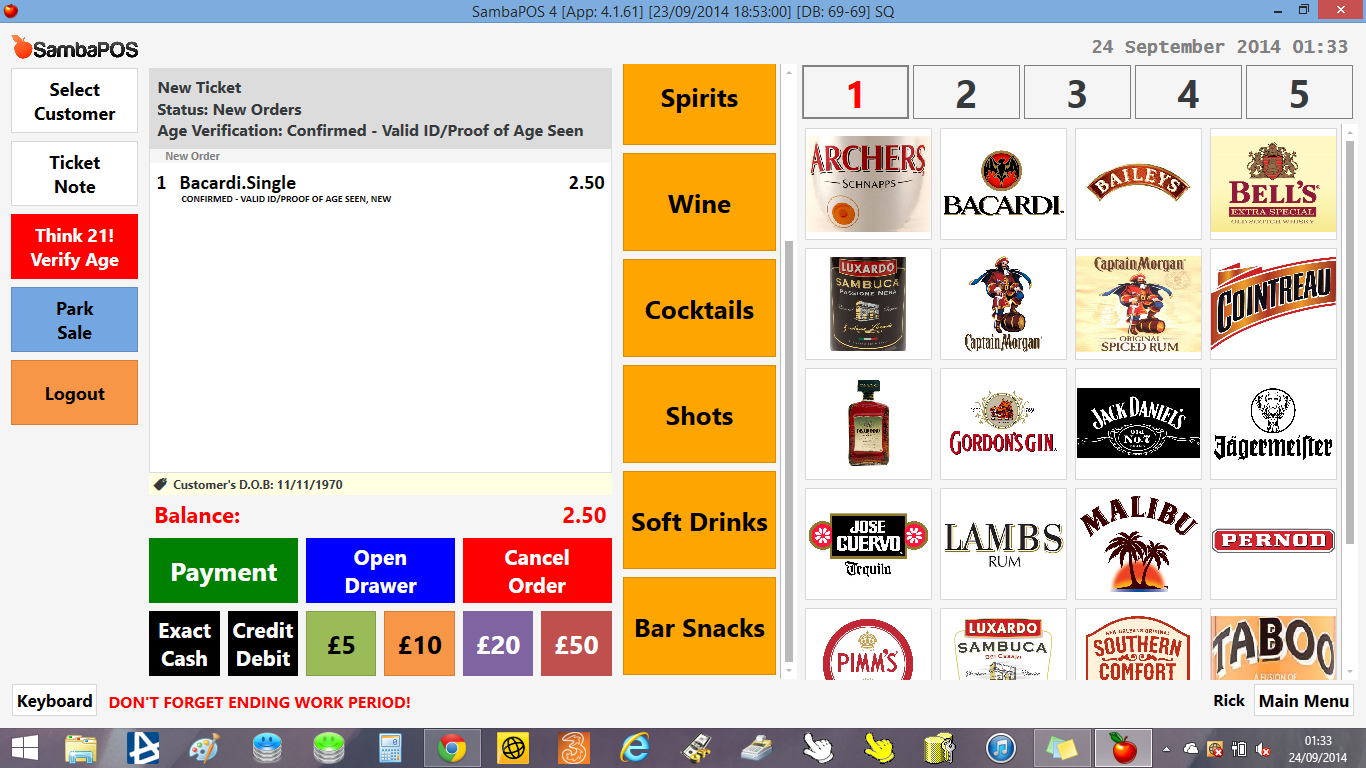
In this tutorial I’ll show you how to implement a Age Check mechanism that is required to sell alcoholic drinks in some countries.
Important
- Install at least 4.1.61 version before implementing this tutorial.
- For simplicity I’ll skip Rule Mapping Steps. While creating a rule don’t forget to add rule map.
###Preparing Products and Tickets
I’ll start by configuring a custom product tag named Confirm Age.
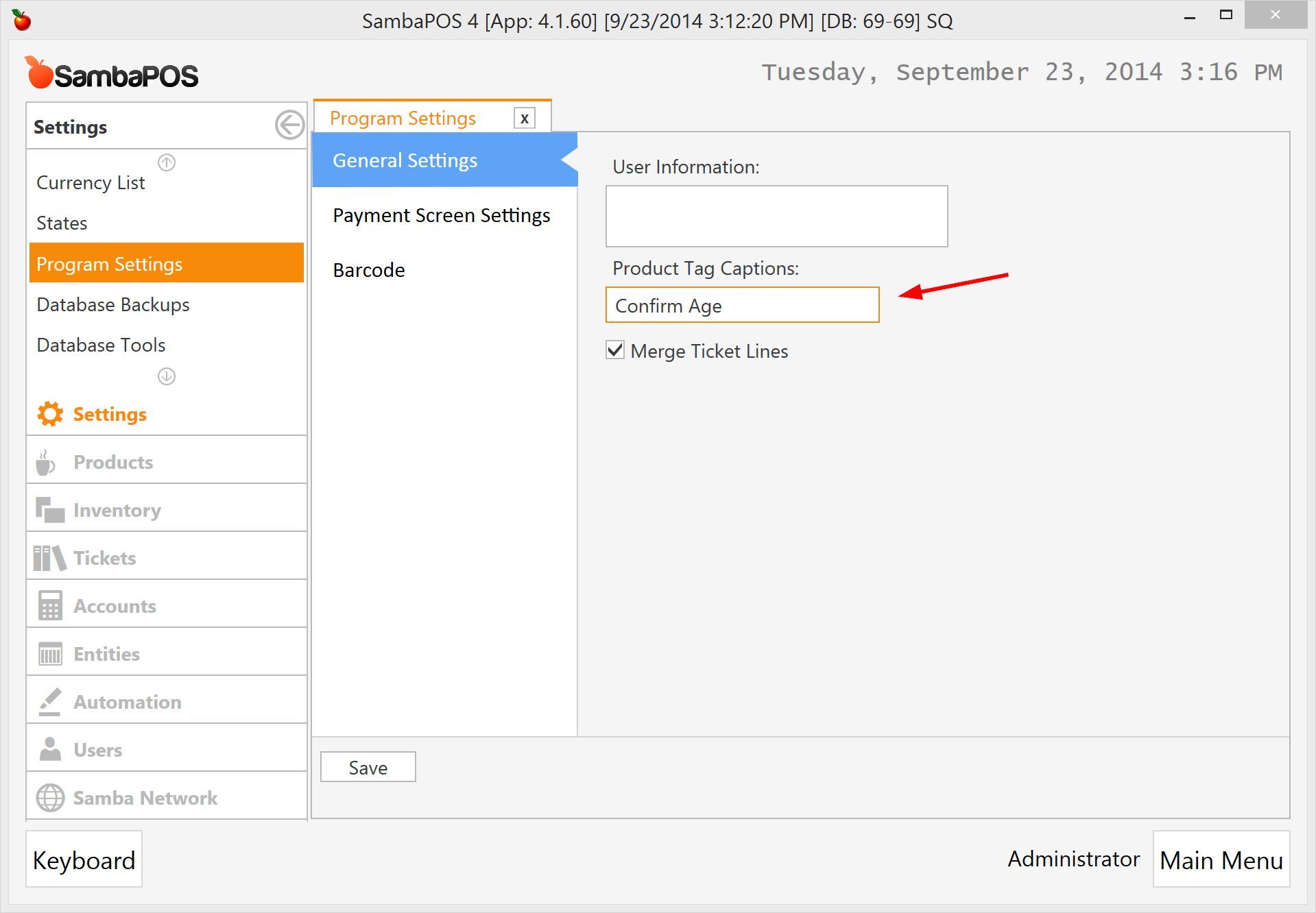
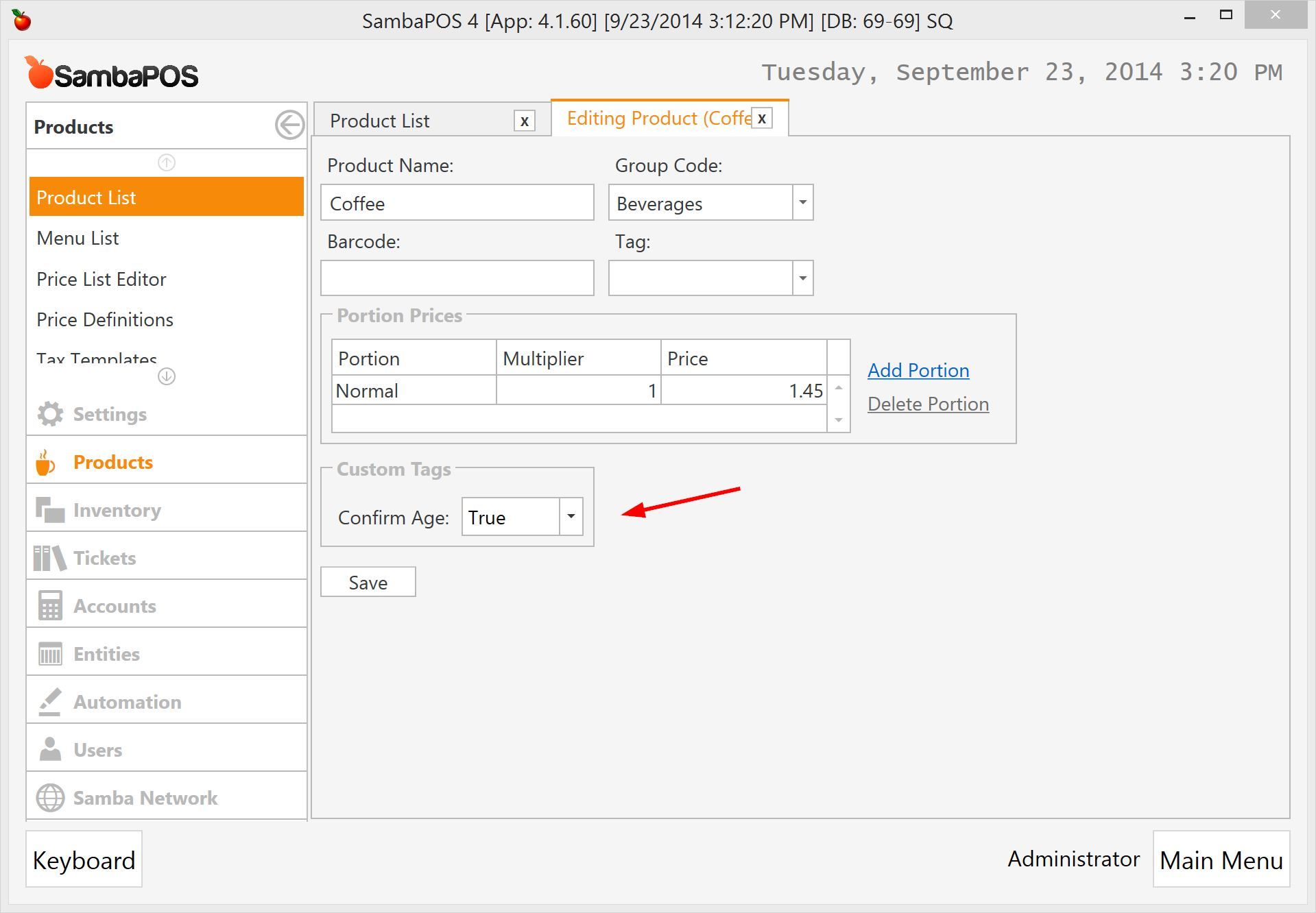
After Saving it edit your products and set Confirm Age tag to True for all products that needs Age Checking. For this tutorial I’ll enable it for all Beverages.
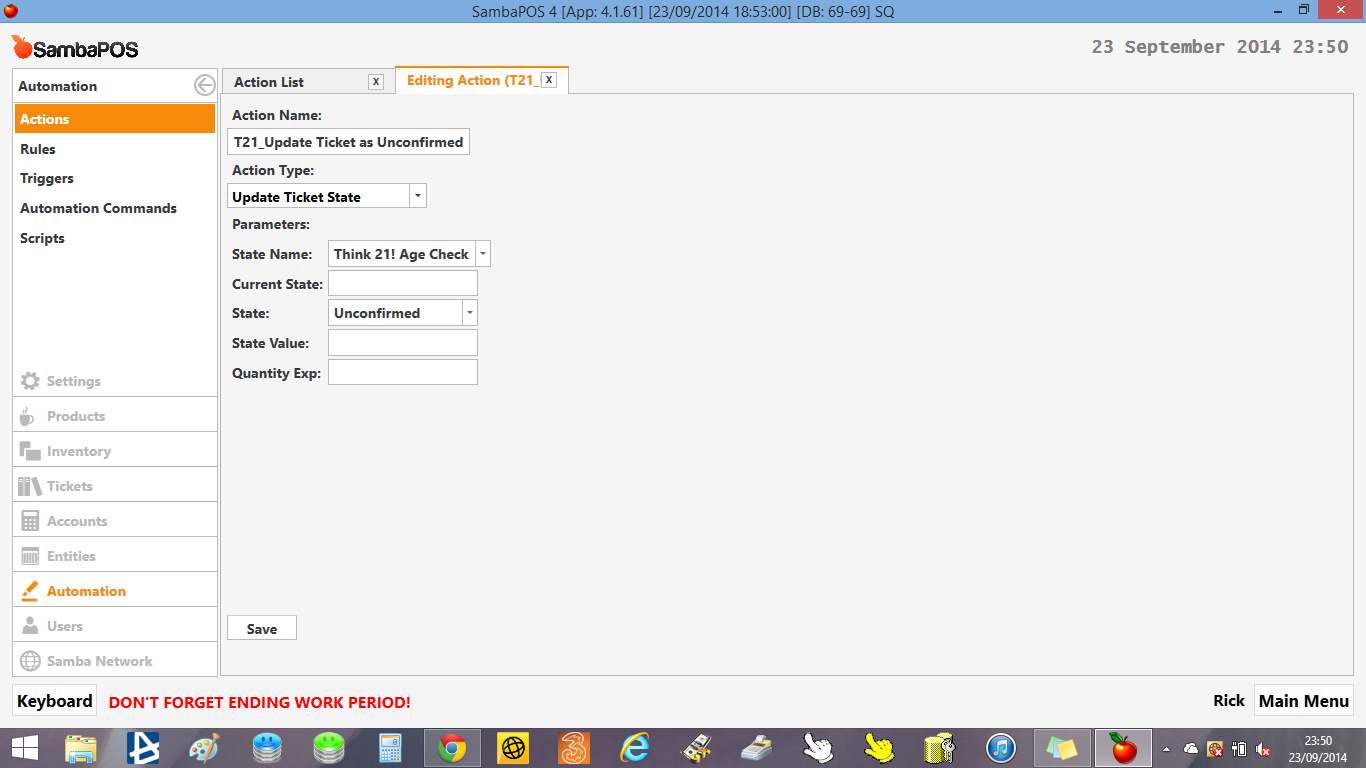
I’ll create a new Update Ticket Stateaction to mark Ticket as Unconfirmed that will work when I first add a product that needs age checking.
Note: I’ll prefix all Age Check related rules and actions with
AC_to differ them from other rules and actions.

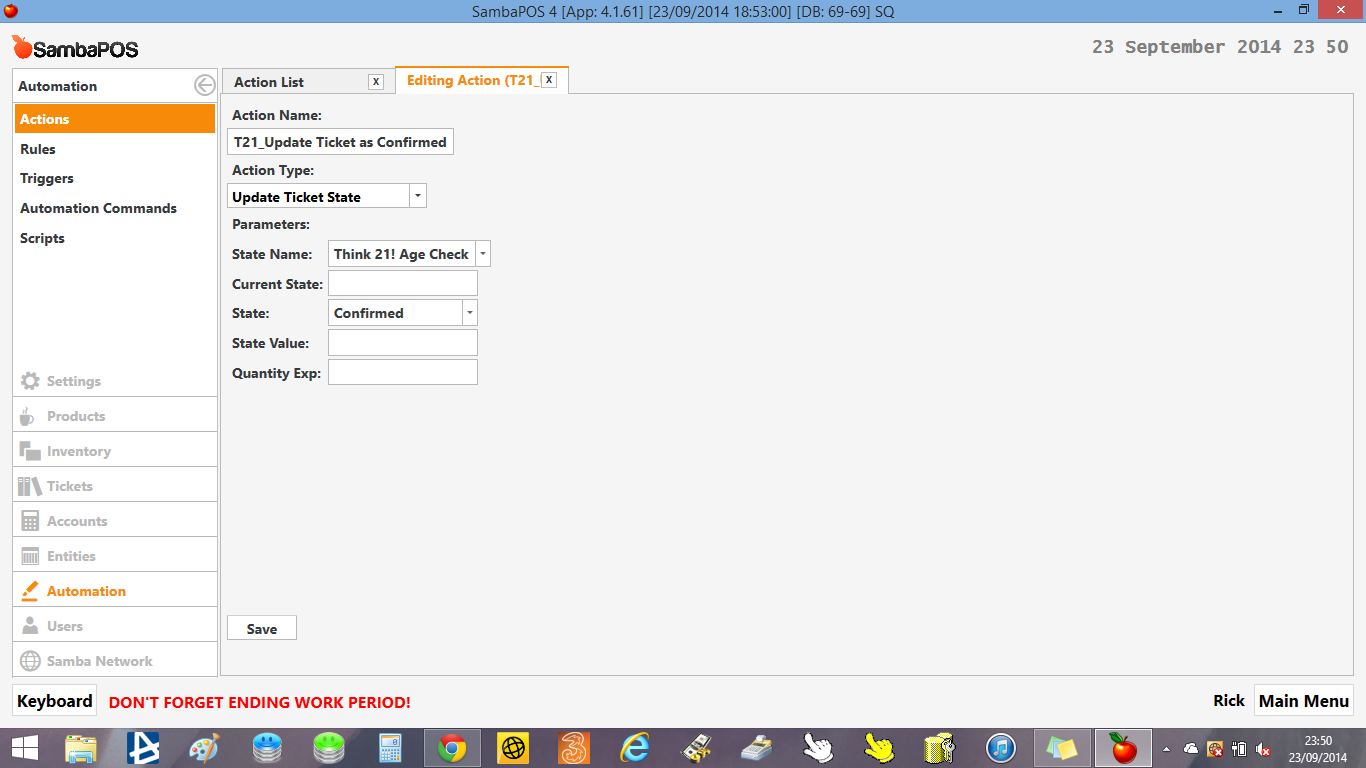
I’ll create another one to update Ticket’s Age Check state to Confirmed. That will work when Customer’s age gets confirmed.

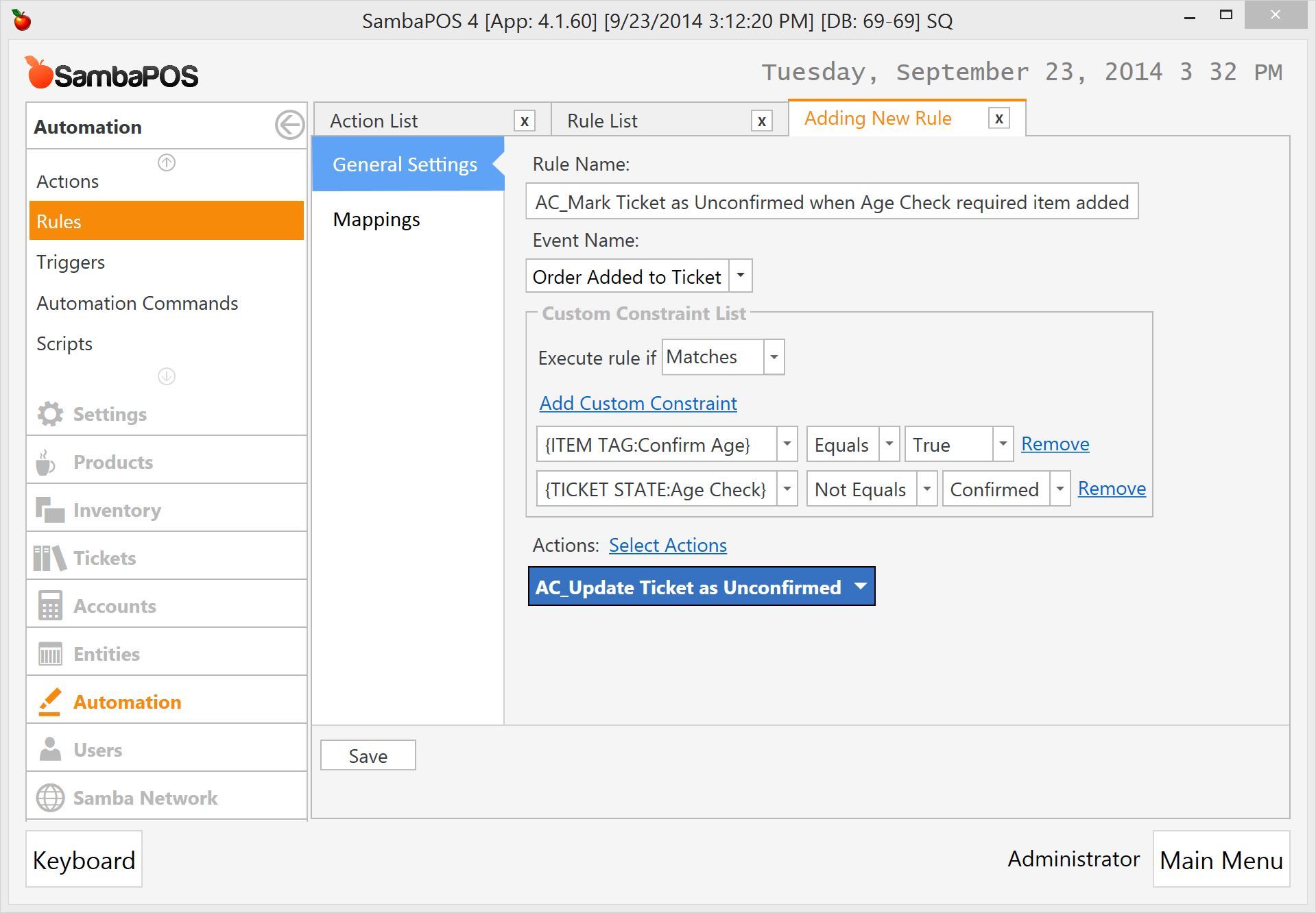
Now I’ll create a rule to see how it works. I want to change Ticket as Unconfirmed when a beverage added.
When a new order added… if added item needs Age Checking and ticket is not already confirmed it marks ticket as unconfirmed.
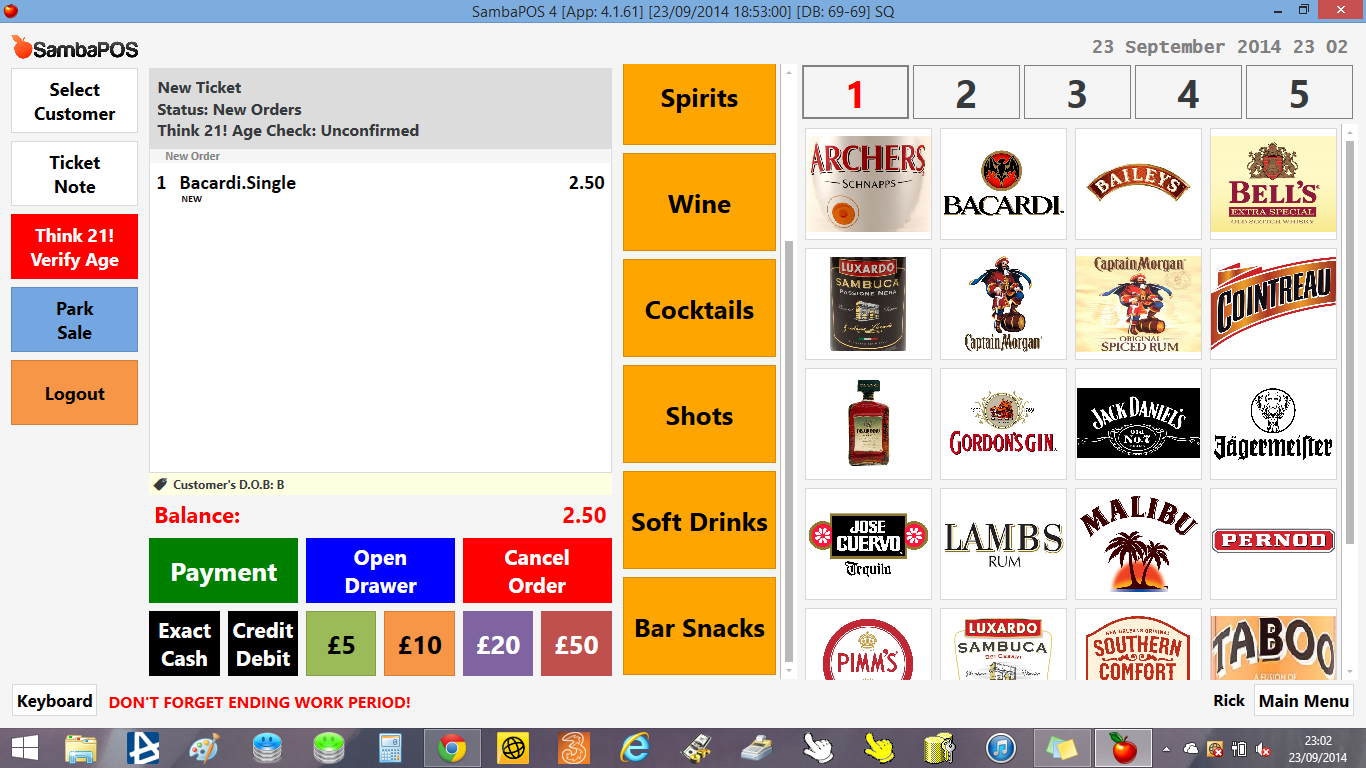
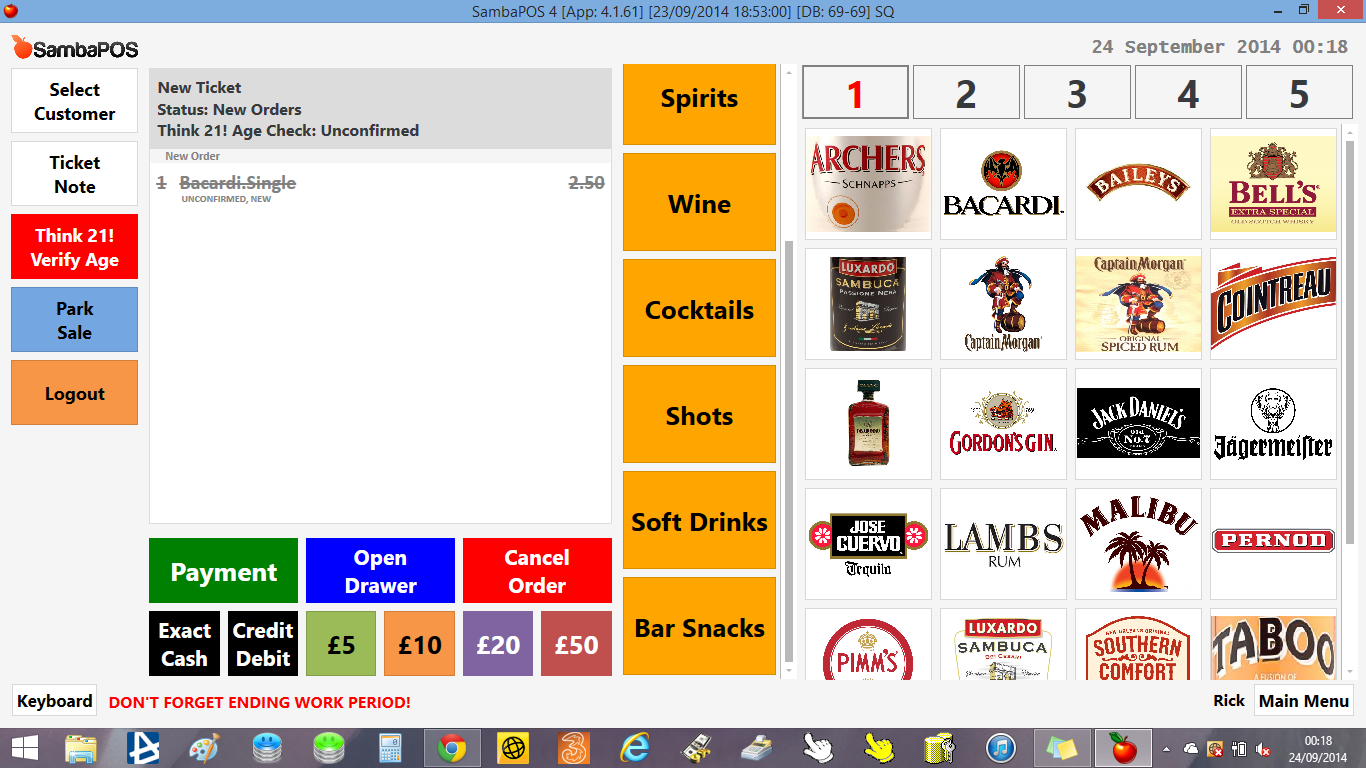
Now we can test how it works. When I add a beverage ticket’s Age Check state should become Unconfirmed.

When I add the first order nothing happens but when I add Coffee Age Check state becomes Unconfirmed. Remember for this sample I’ve enabled age check for only beverages.
If it works fine we can continue our implementation. Cancel added orders and close ticket.
###Asking Customer Birthday.
On this step I’ll create a new dialog to ask Customer’s birthday and save it as a ticket tag. I’ll start by creating a new Ticket Tag configuration.

I’ve named it as Customer Birthday. Note it somewhere because we’ll read it’s value by using that name. The important setting is Tagging Type. Set it as Date. I’ll leave sub tags and mappings empty.
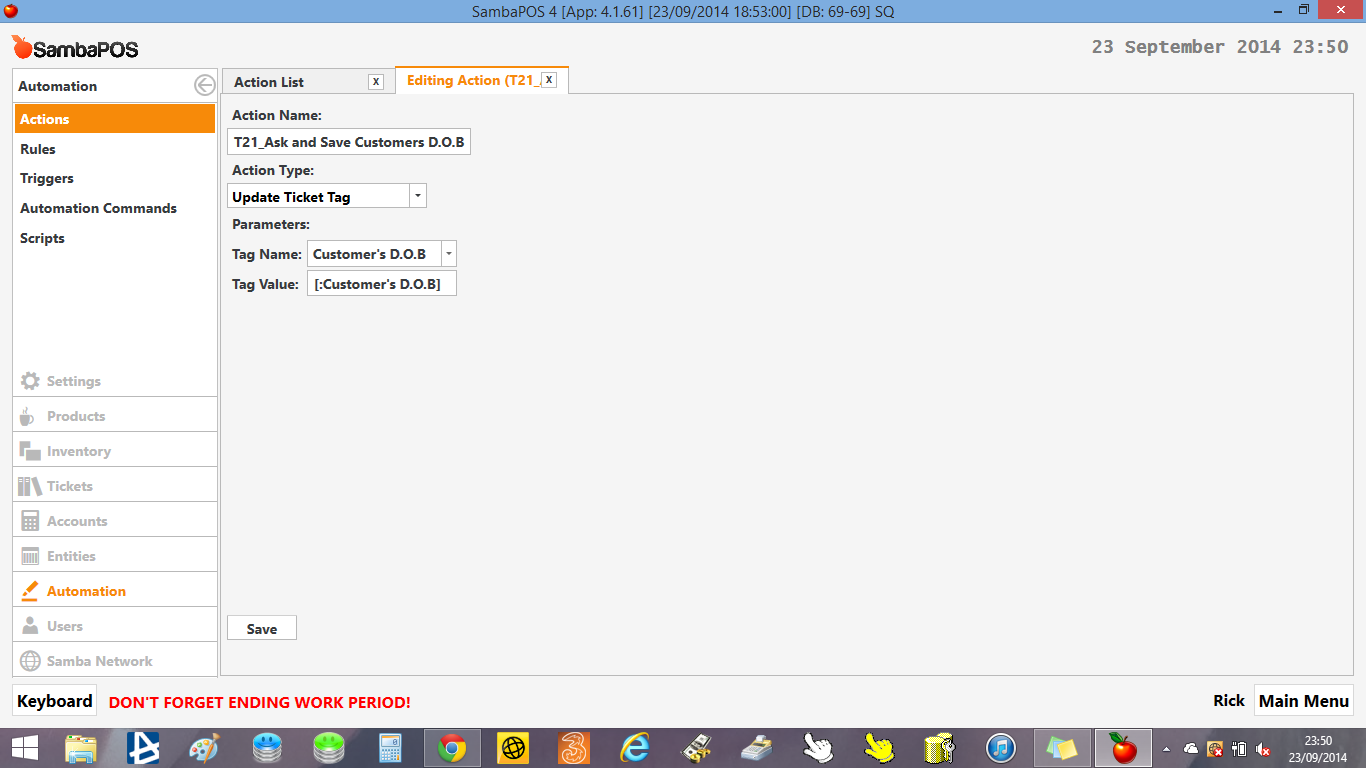
I’ll create an action to set this Ticket Tag.
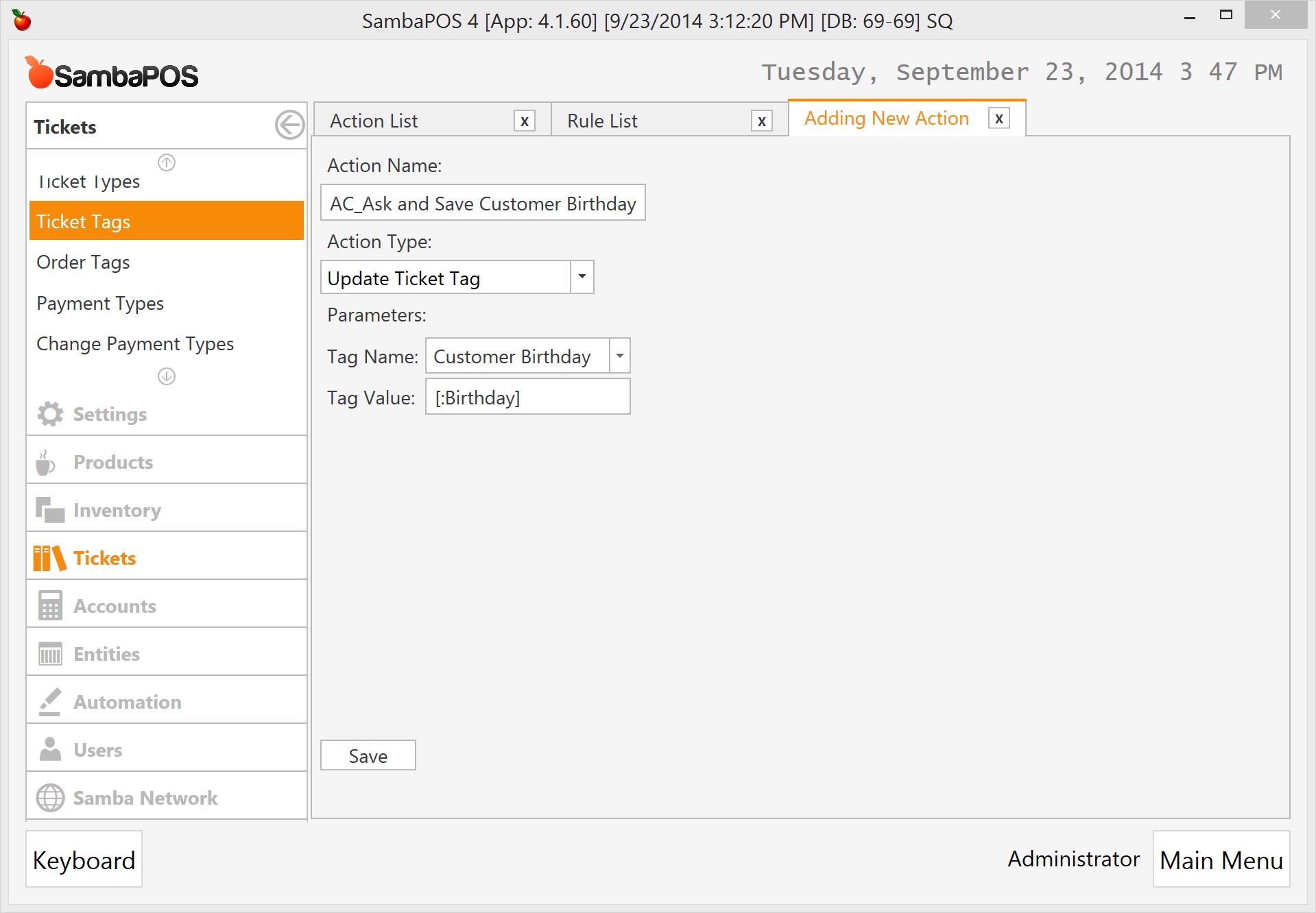
When I set a Birthday value and execute this action it saves birthday as a ticket tag.
Now I’ll go back to AC_Mark Ticket as Unconfirmed when Age Check required item added rule and edit it to add this action.
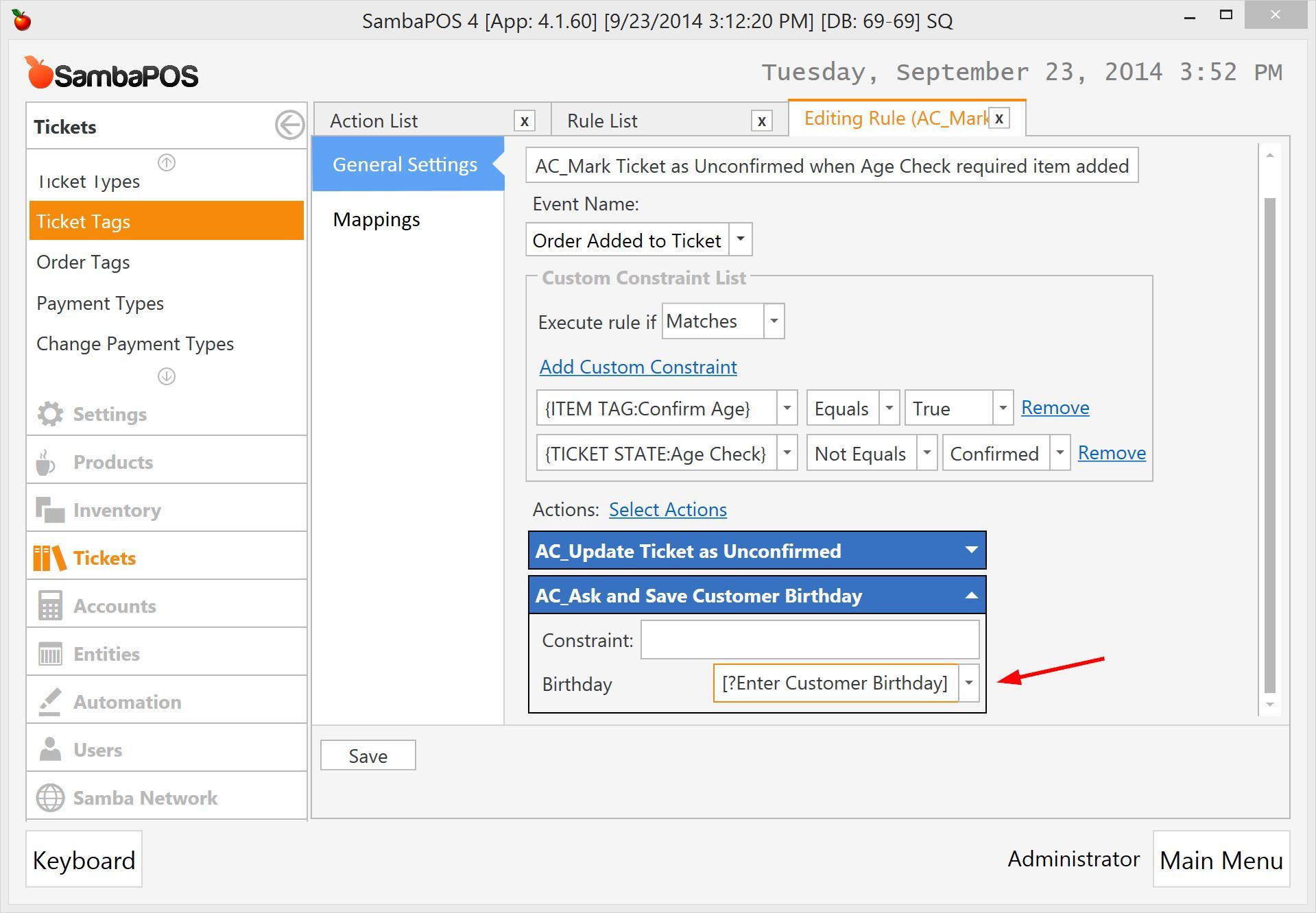
Instead of setting a static Birthday value I’ve used Parameter Query feature to display a dialog box that allows operator enter a birthday.
You can get more info about that from…
So when this action executes it will ask birthday and save entered value as a ticket tag. Let’s test it.
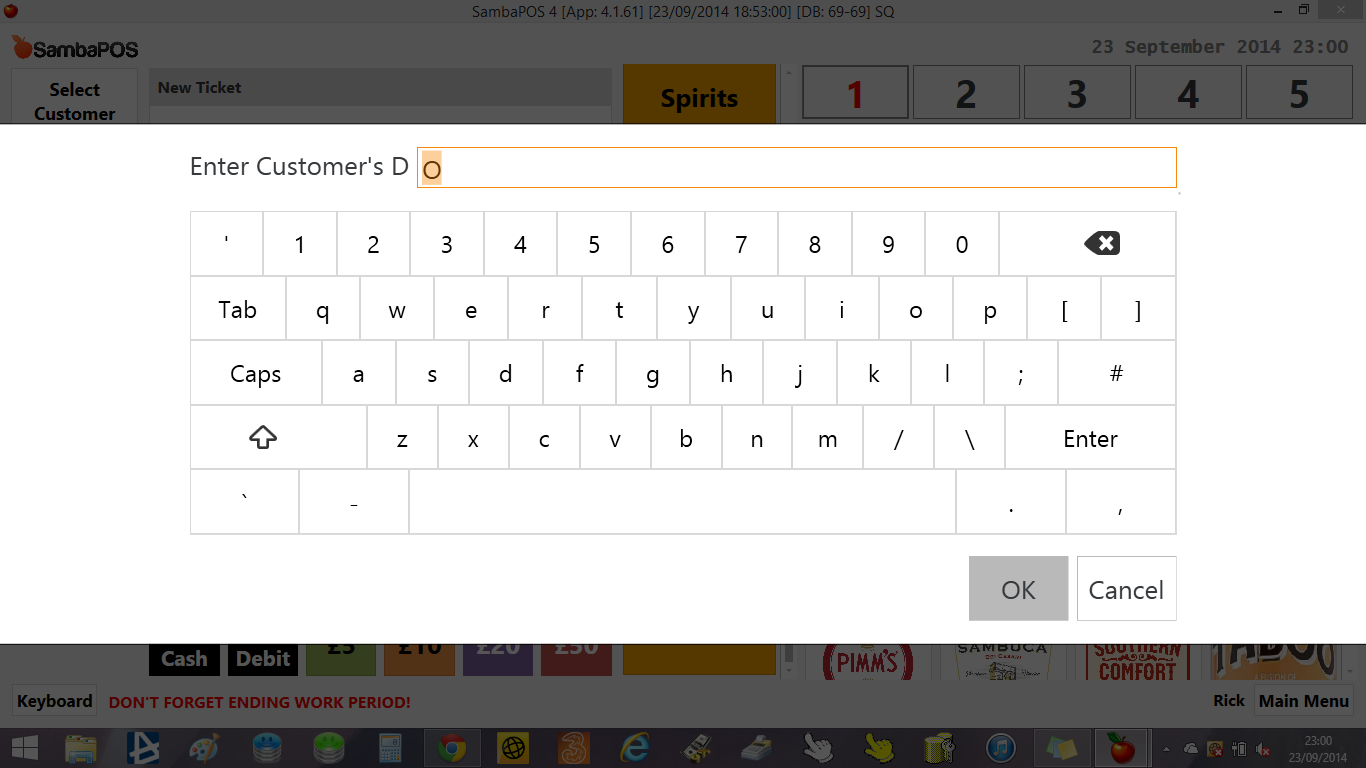
When I add a beverage this screen will appear. We’ll format it better but for now I can type anything here.

When I type a date and click OK it will appear as a ticket tag.
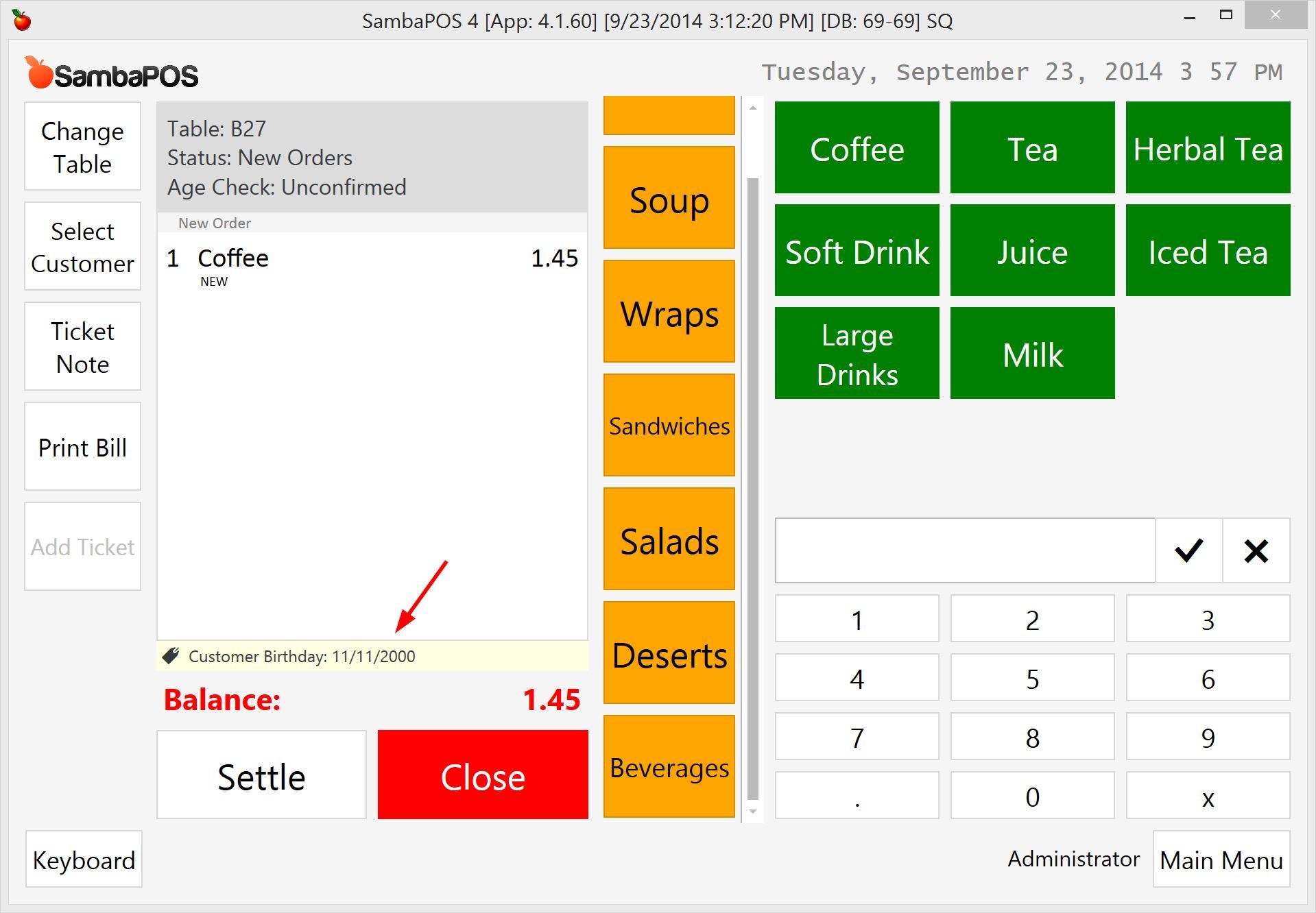
On next steps we’ll test this value and execute related actions.
It would be nice if we had a rule that called Customer Birthday Updated so we can use constraints to check if customer’s age is 18 or not. This is one of the less known features of automation system but we can do it with Execute Automation Command action. Cancel order, close ticket and create a new Execute Automation Command action.
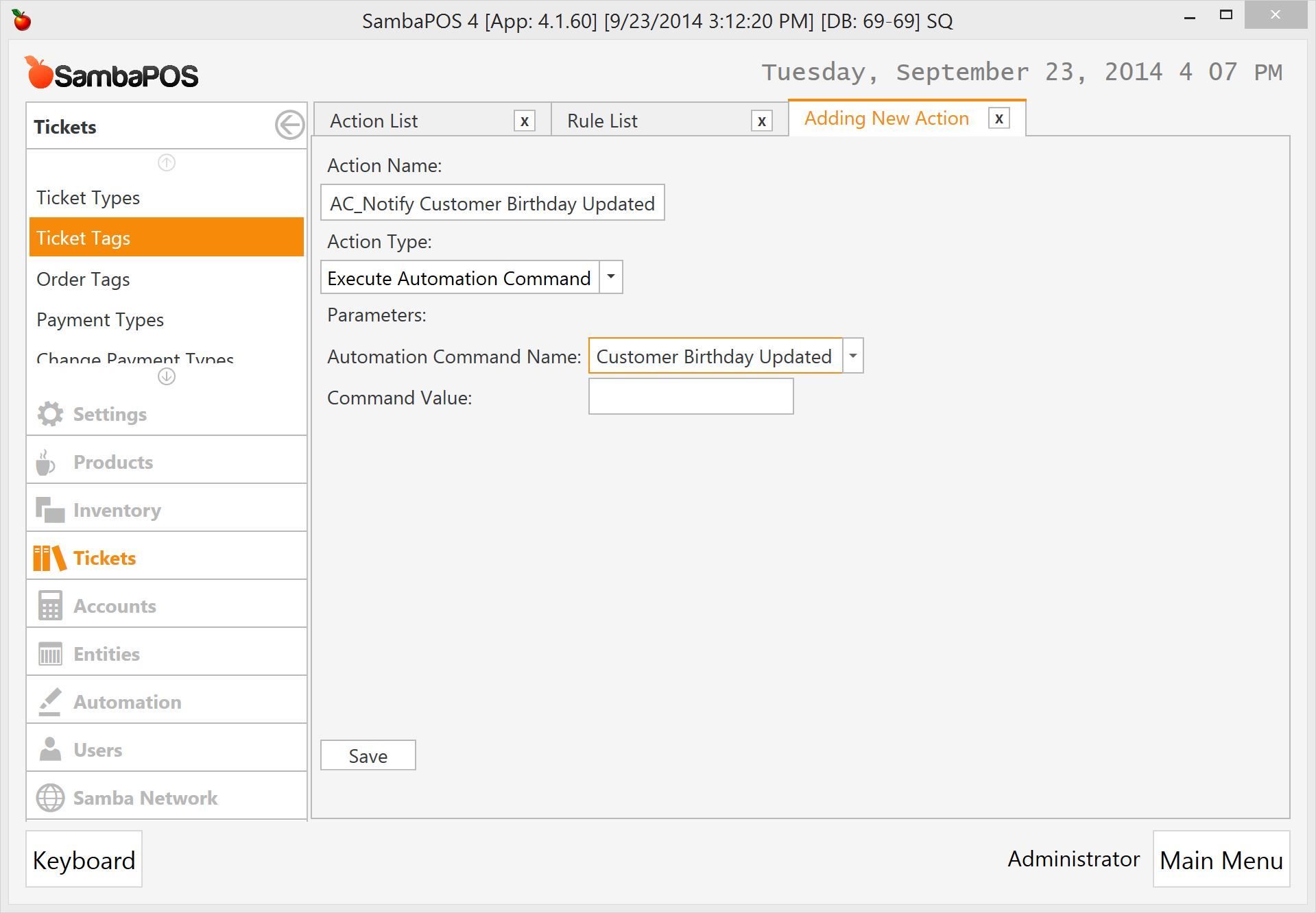
When that action executes it triggers Automation Command Executed rule so I can create rules that handles that event. On final step of AC_Mark Ticket as Unconfirmed when Age Check required item added rule I’ll execute this action.
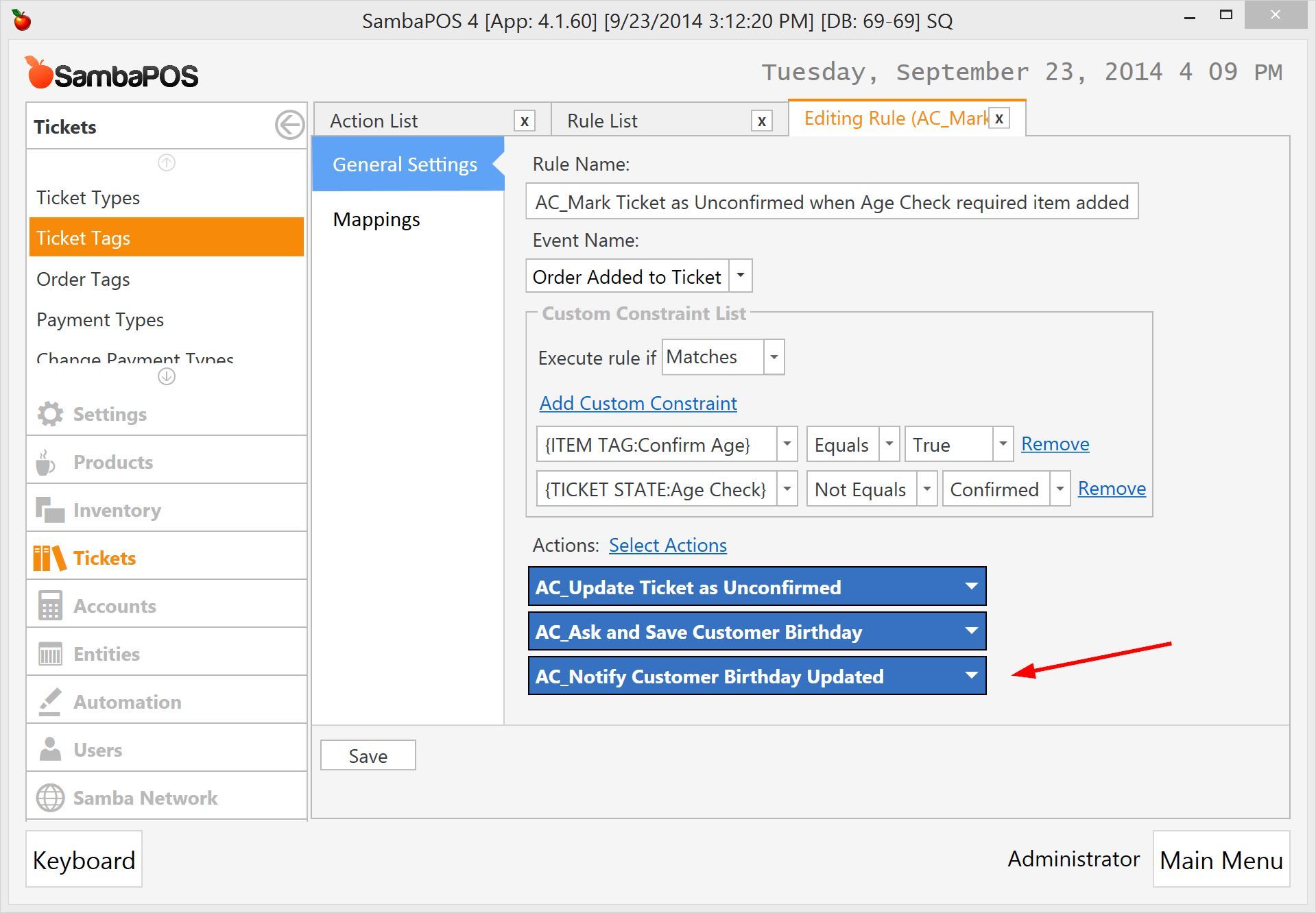
To sum it up AC_Mark Ticket as Unconfirmed when Age Check required item added rule…
- Checks
- If added order needs age checking.
- If ticket is not already confirmed.
- Does
- Marks ticket as unconfirmed.
- Asks Customer Birthday.
- Saves it as a ticket tag.
- Executes a notification about customer birthday updated.
###Validating Customer Birthday
When operator inputs a customer birthday Customer Birthday Updated command executes. On this step we’ll create rules to handle that event.
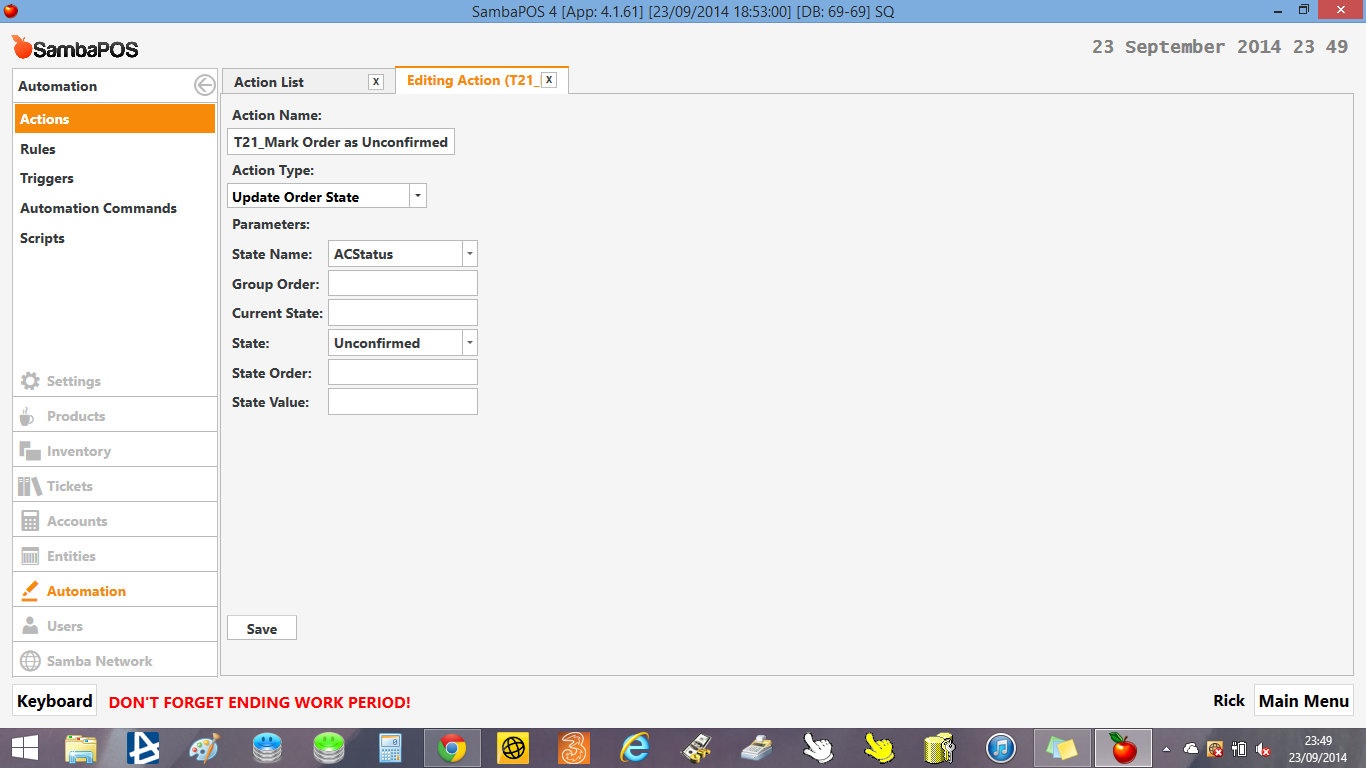
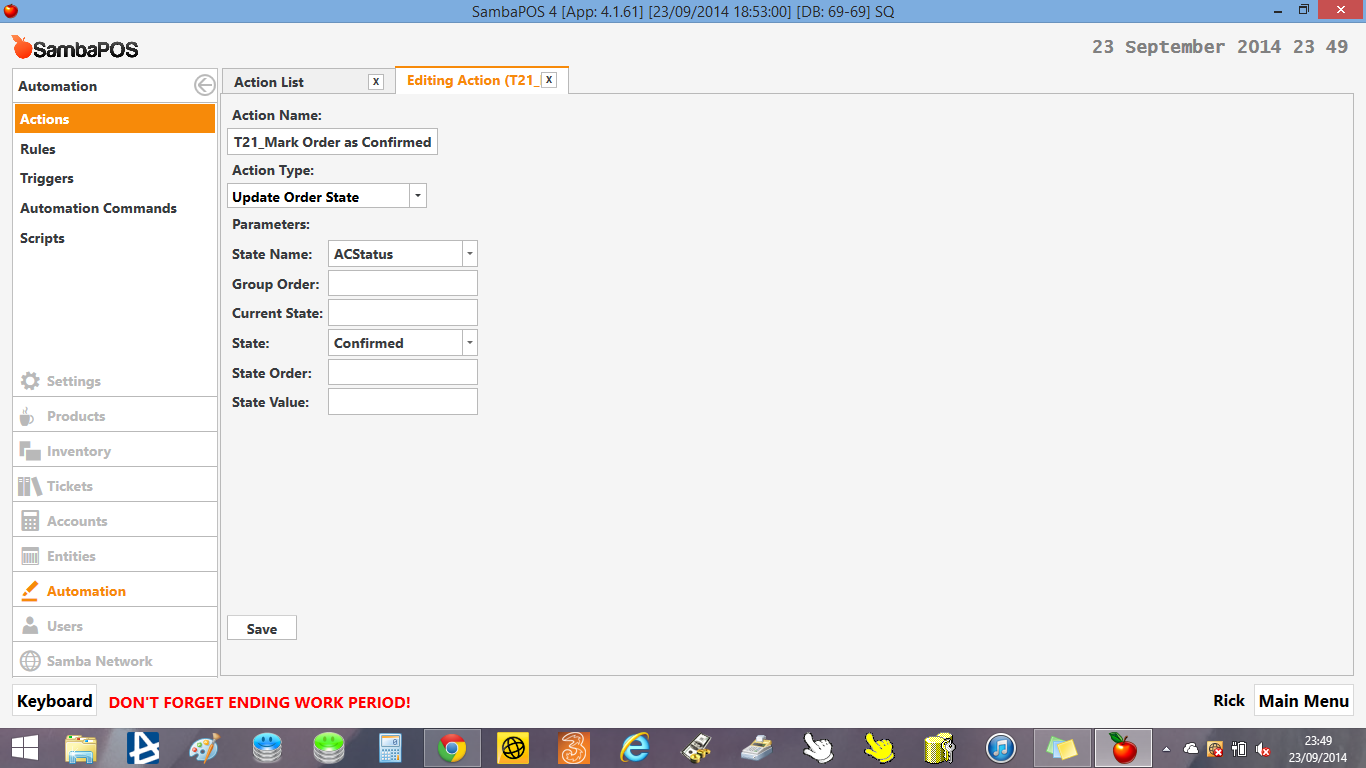
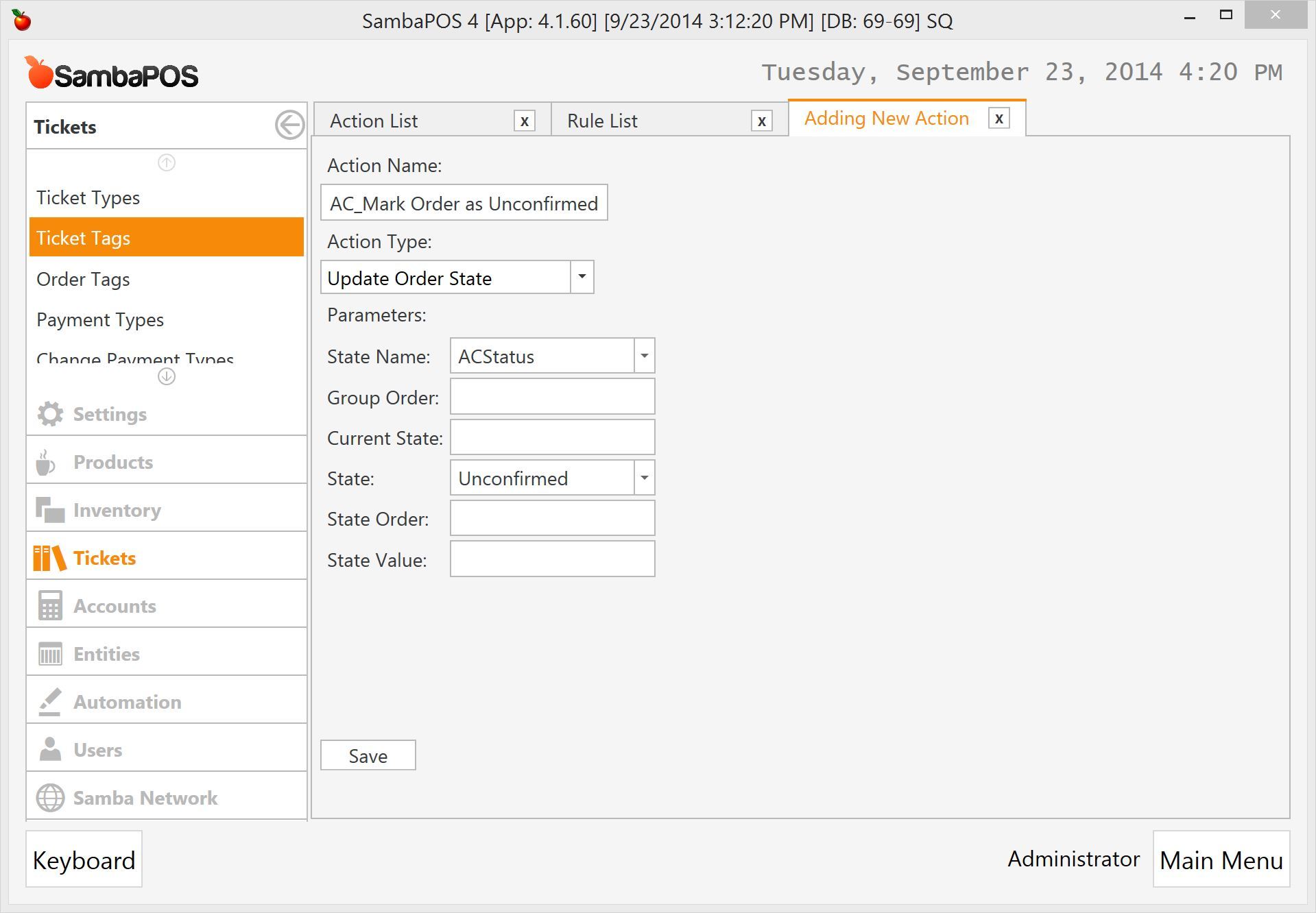
We need to update order’s Confirmation state as Confirmed/Unconfirmed if age validates or not. That allows us to create reports about that orders. So before validating birthday we’ll create actions to update order states.
This action will update order’s ACStatus as Unconfirmed
… and this one will update it as Confirmed.
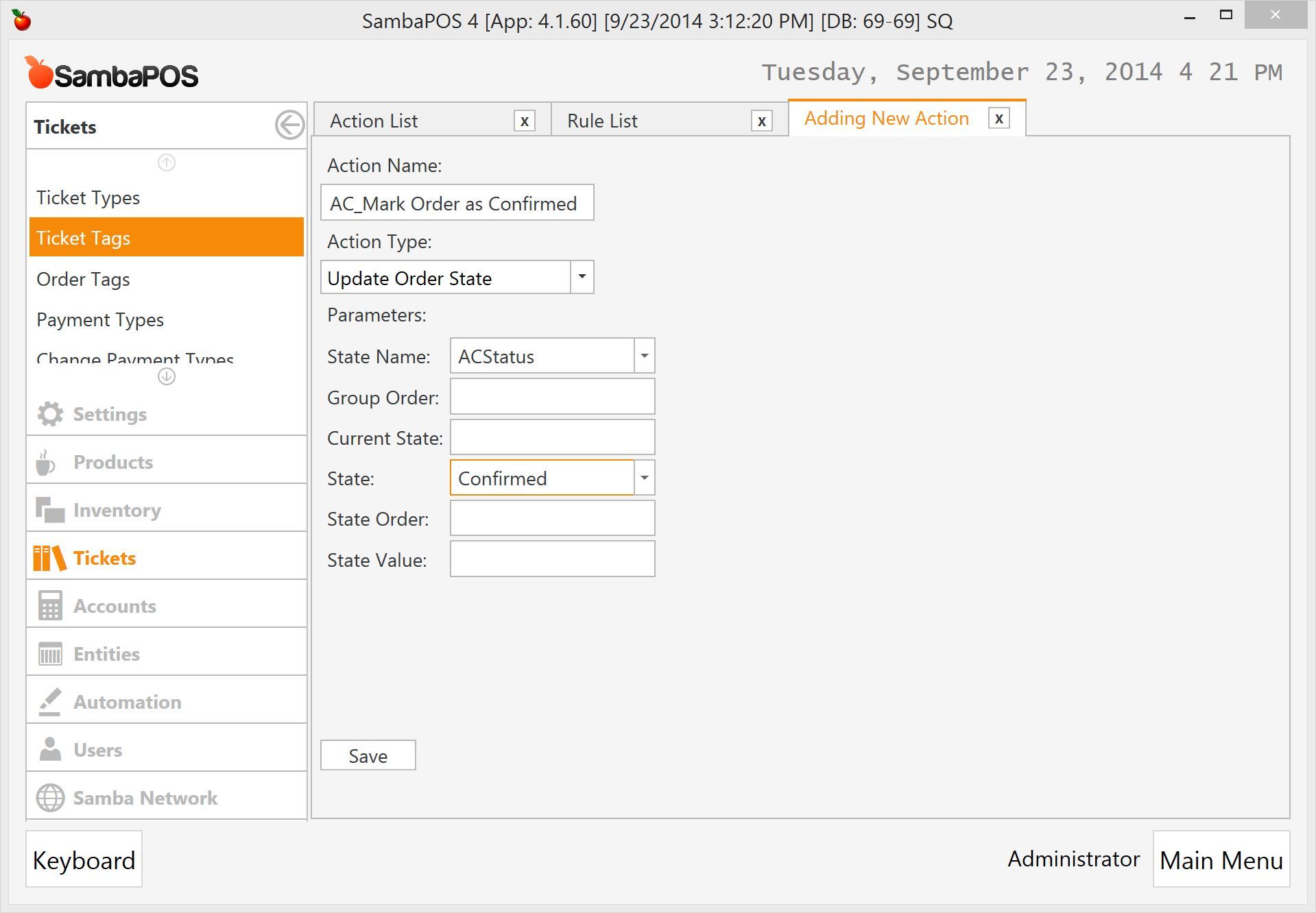
Advanced users can create a single action and use variables to update order state. I’m creating separate actions to visualize workflow better.
####Rule for valid age
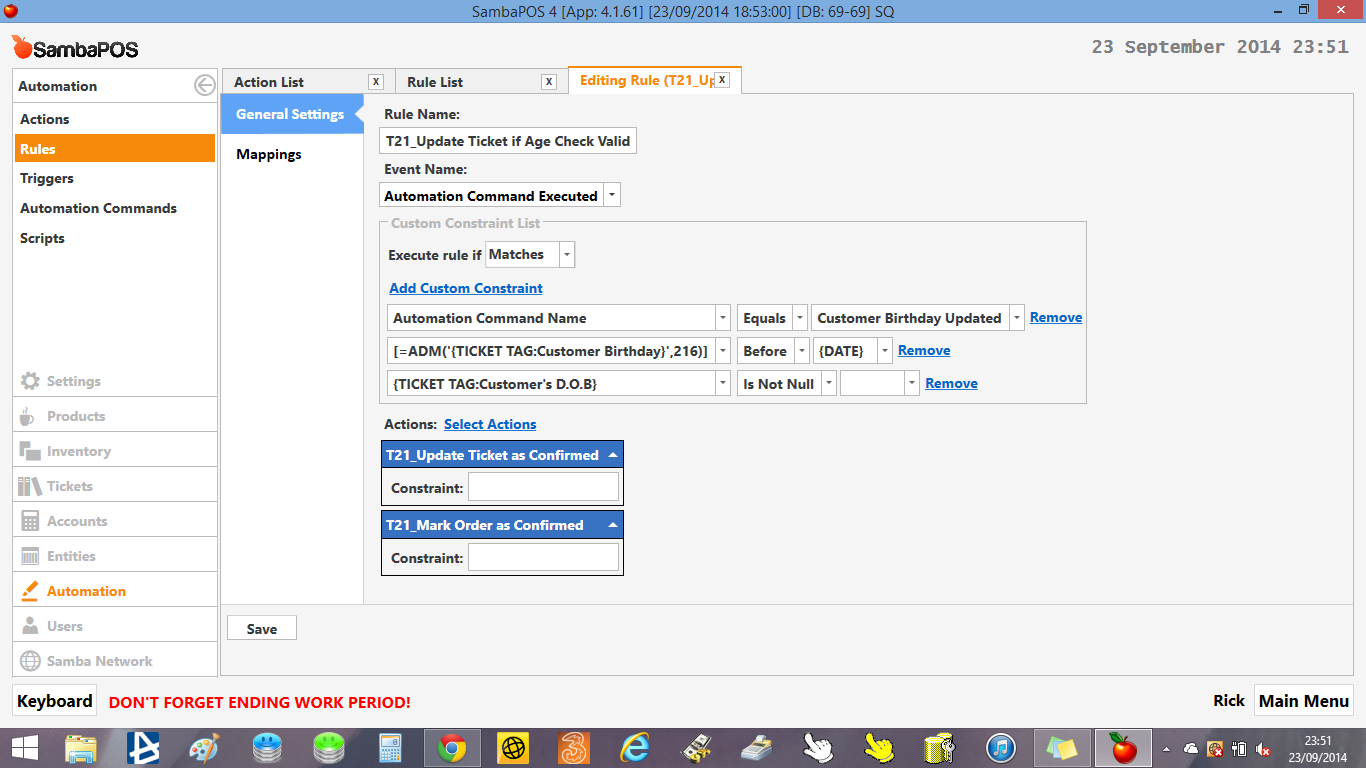
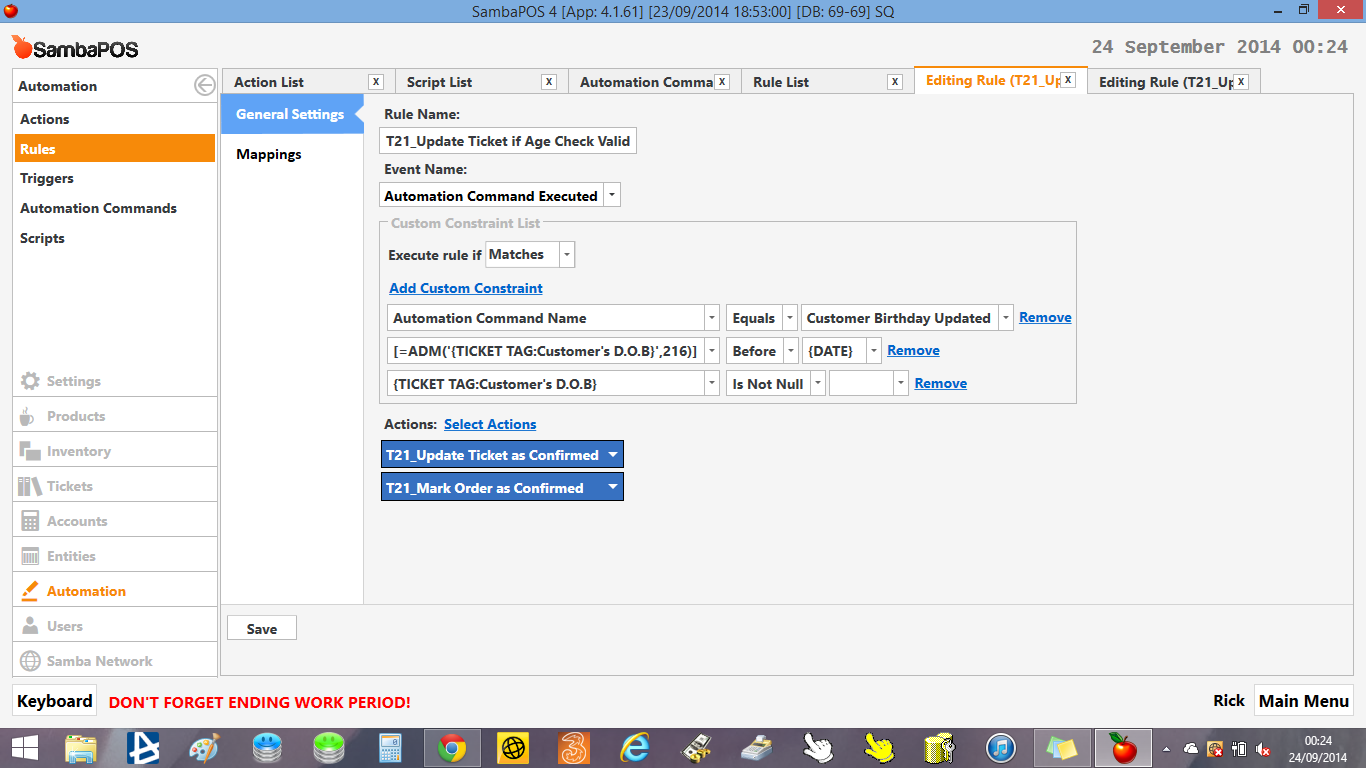
We’ll create a rule that checks if customer is older than 18 yrs and executes related actions.
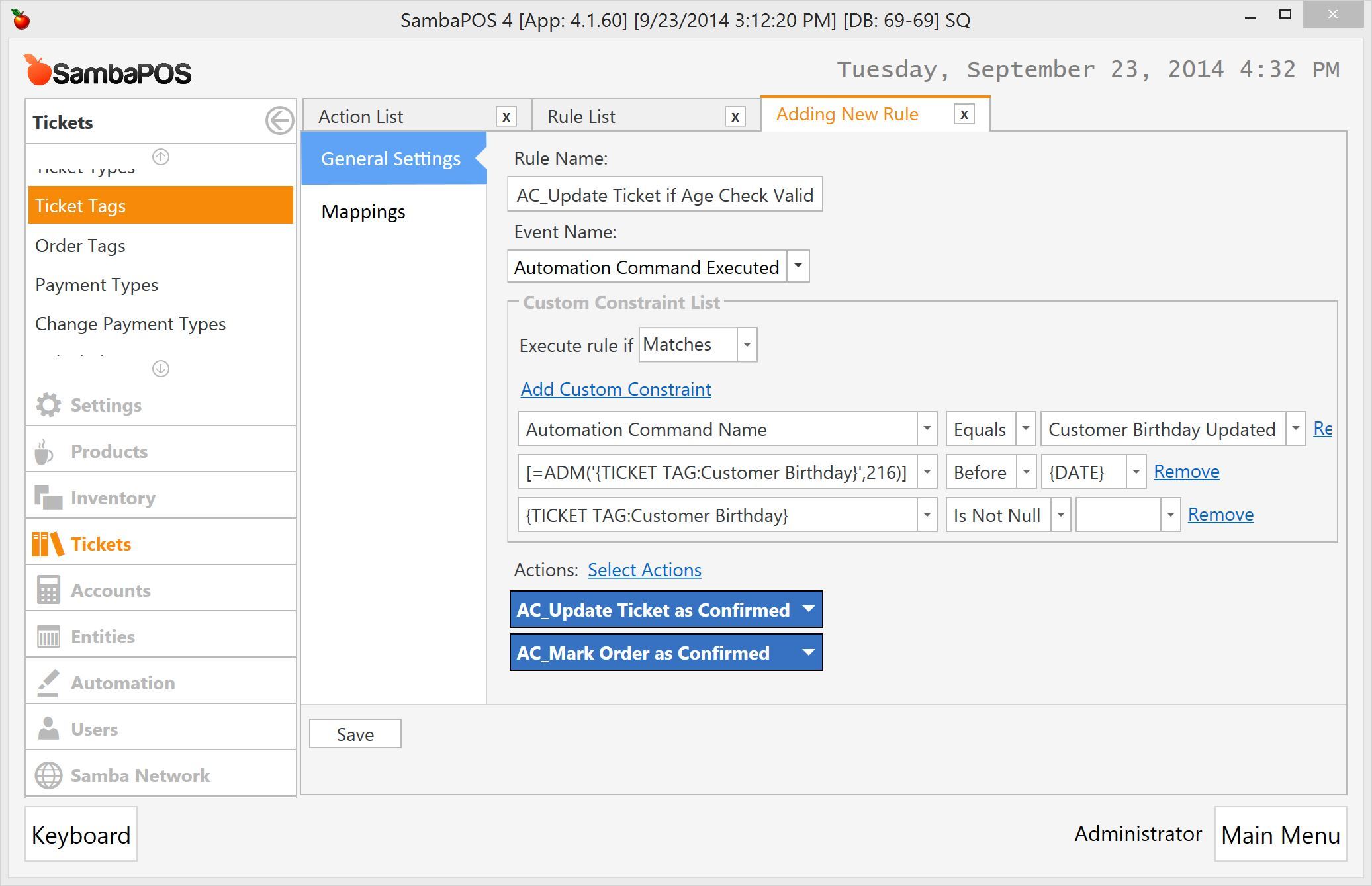
I’ll explain constraints in more detail.
Automation Command Name: You’ll remember we executed a notification calledCustomer Birthday Updated. That constraint checks if we’re handling correct notification. In other words we’re handlingCustomer Birthday Updatedautomation command.[=ADM('{TICKET TAG:Customer Birthday}',216)]: This expression adds 216 months (18 years) to customer birthday and checks if it isBeforecurrent date. We’re reading customer birthday with{TICKET TAG:Customer Birthday}tag and add 216 Months to birthday withADMfunction. If you’re age limit is different than 18 you can change 216 value with related months. You’ll multiply age with 12.{TICKET TAG:Customer Birthday}. This constraint checks if a birthday entered or not.
When it validates rule updates Ticket and related order as Confirmed .
####Rule for invalid age
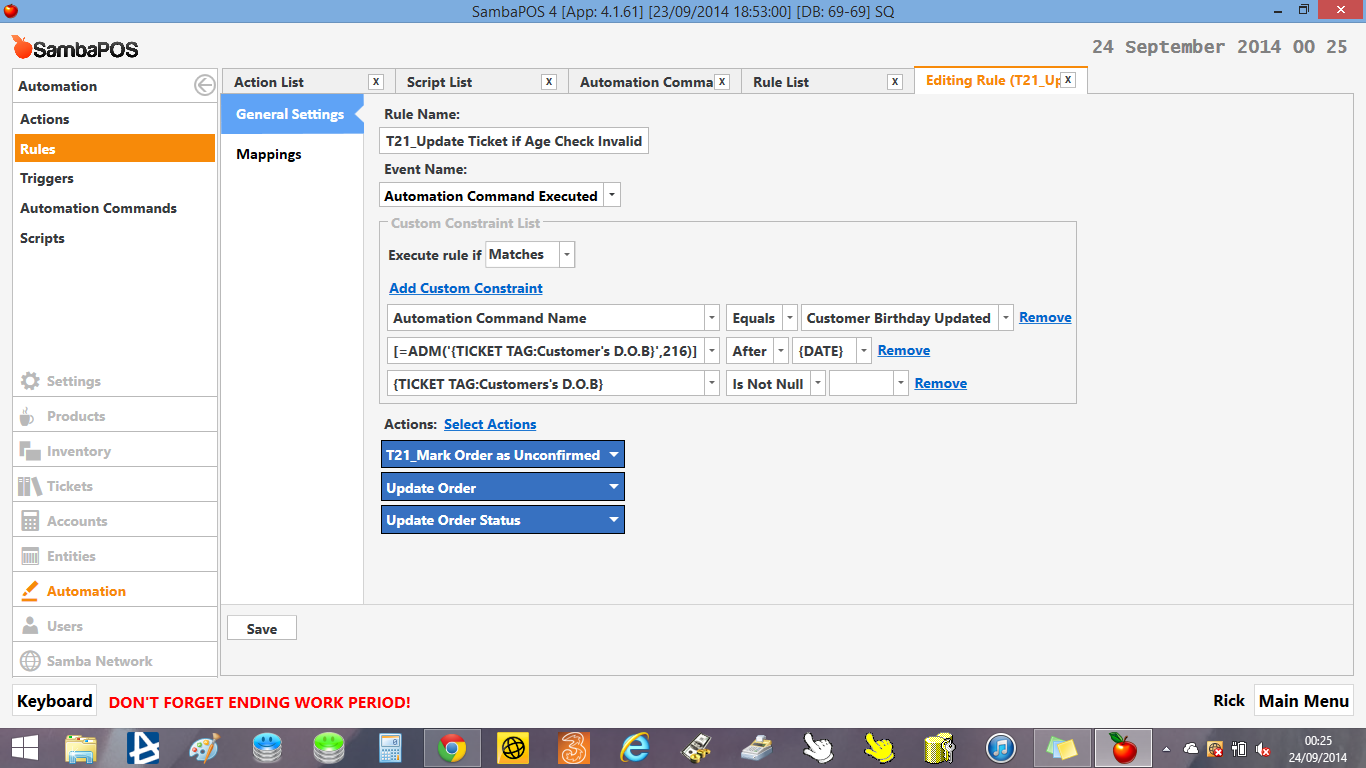
Previous rule executes if customer age is valid. We’ll create another rule that handles Customer Birthday Update event and works if customer age is not valid.
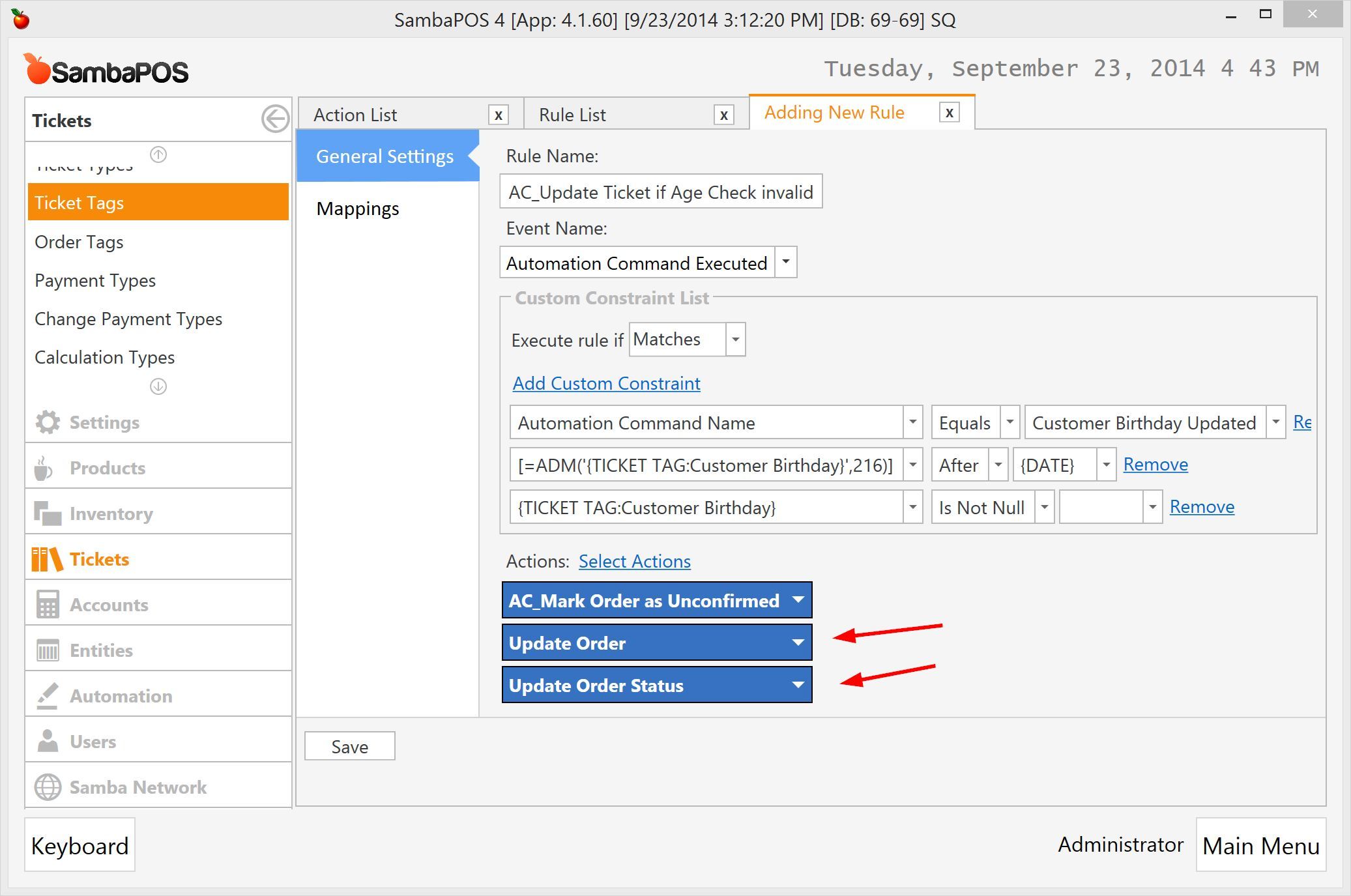
Notice how second constraint checks if calculated date is after current date. If it is after that means customer is younger than 18.
If customer age is not valid it marks order as Unconfirmed. It also does two things.
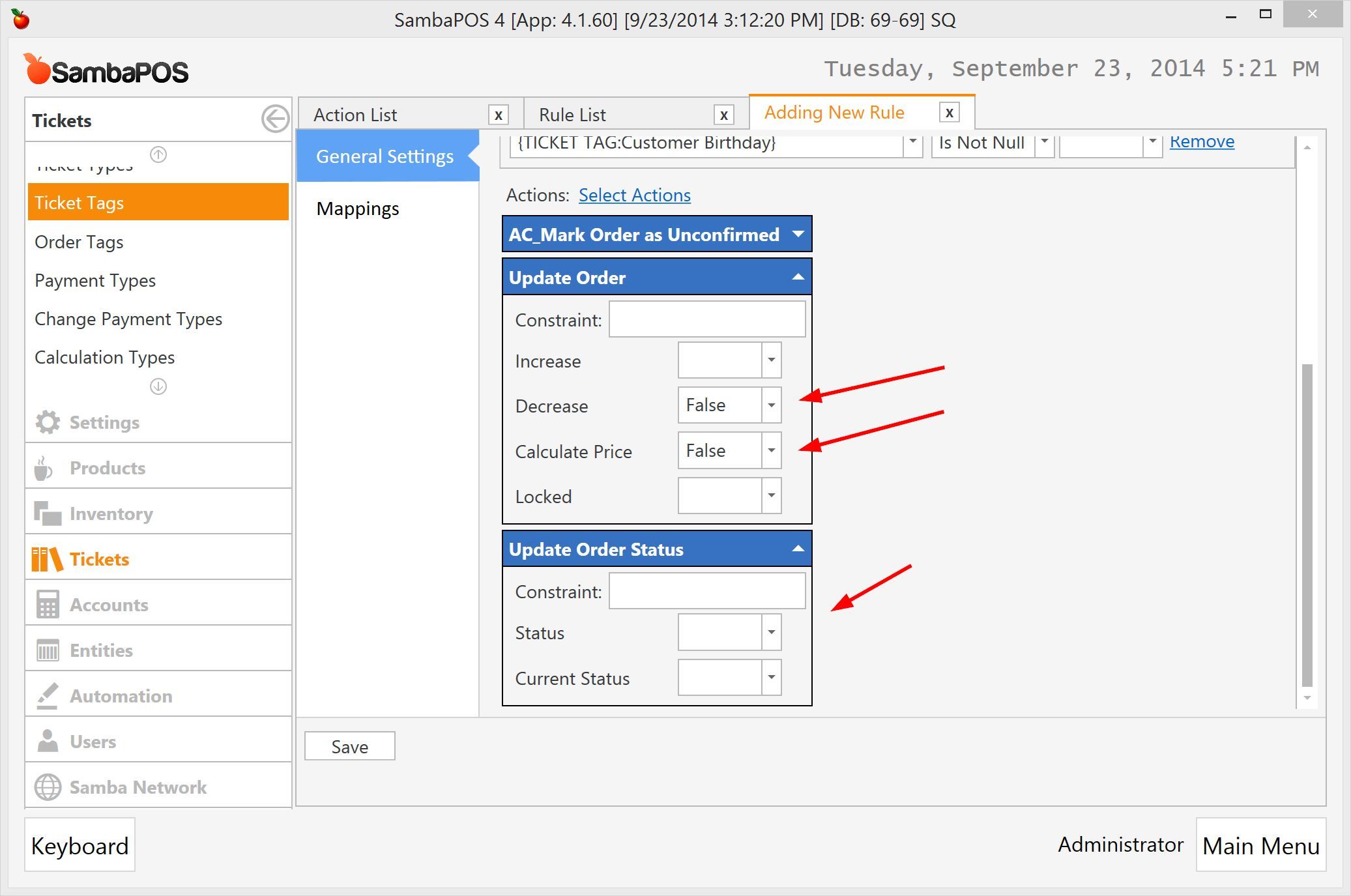
- Update Order is a built in action that comes with default install. We’ll use it to exclude order from calculation like we do for gifts or voids.
- Update Order Status is also a built in action. We’ll use it to prevent order from printing to kitchen. We’ll simply clear status so
Newstatus will disappear but to fit that to your work flow you can define a custom state for it.
This is the expanded configuration for these actions.
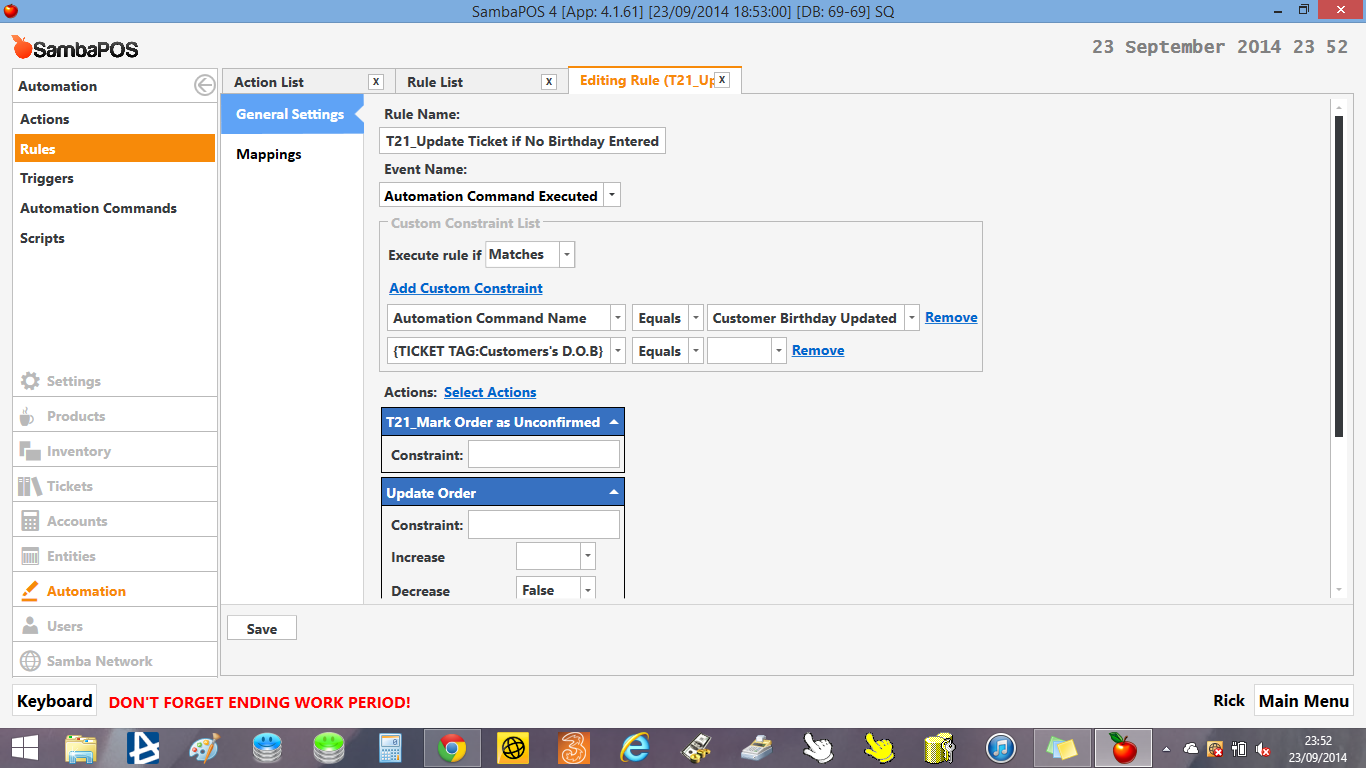
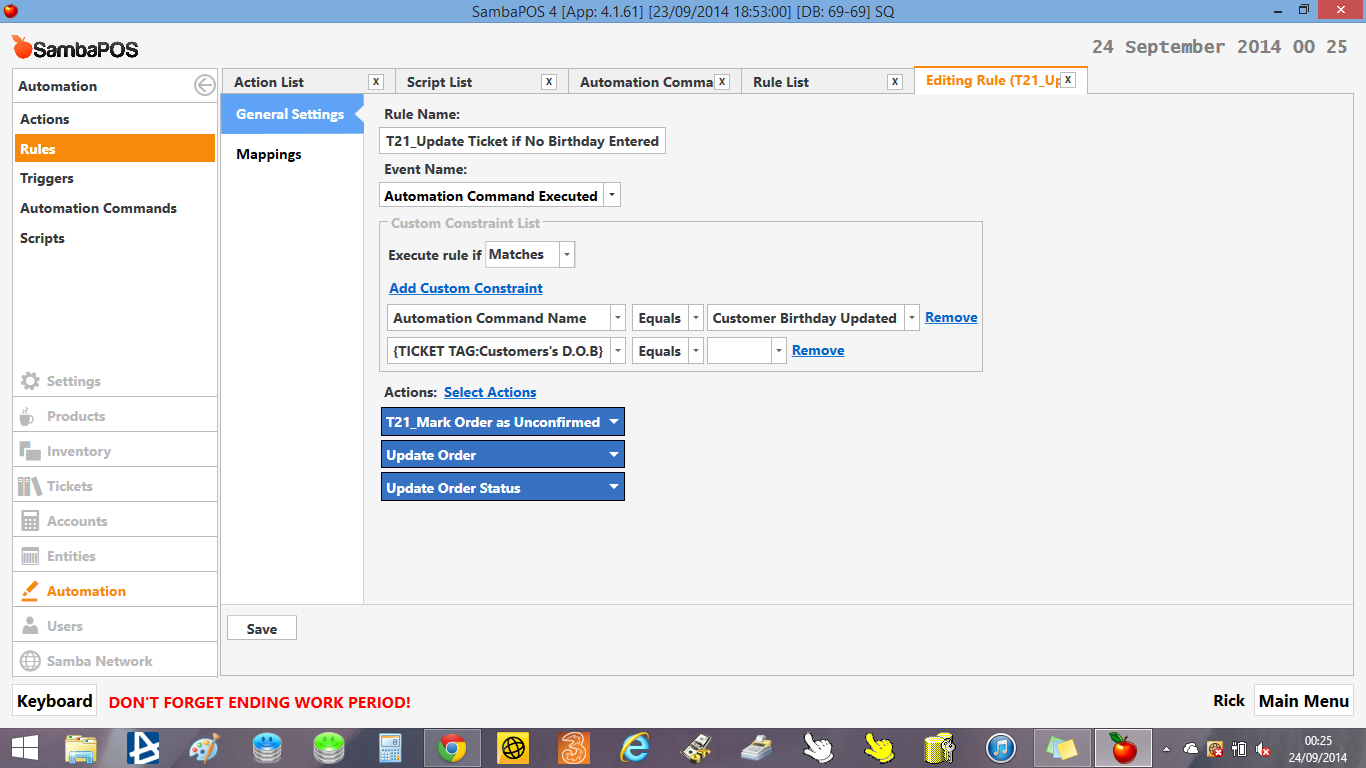
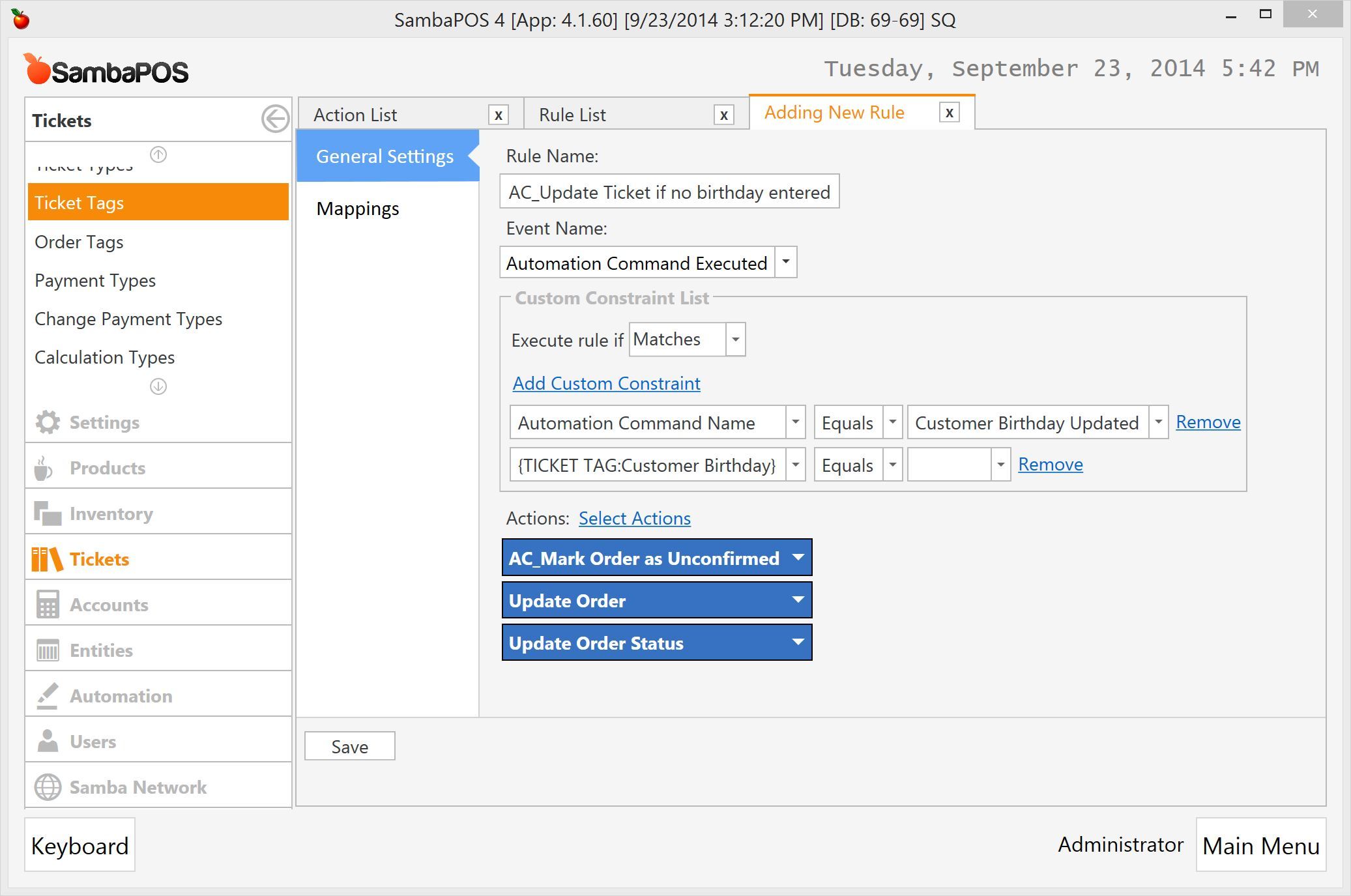
If you’ll allow operator to enter empty values in birthday asking dialog we also need a third rule to handle that case. You can clone it from AC_Update Ticket if Age Check invalid rule and adjust constraints as it does the same thing.
Let’s test how it works.
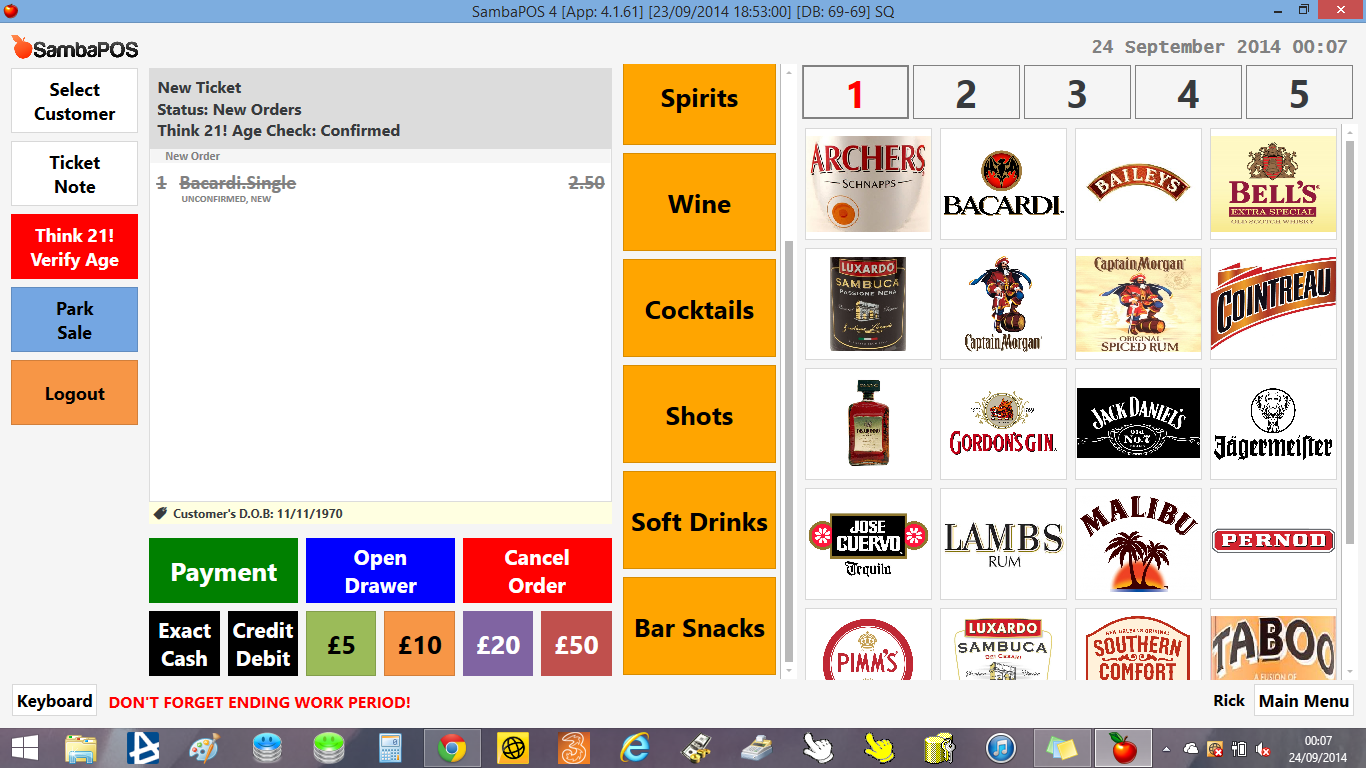
####Case 1
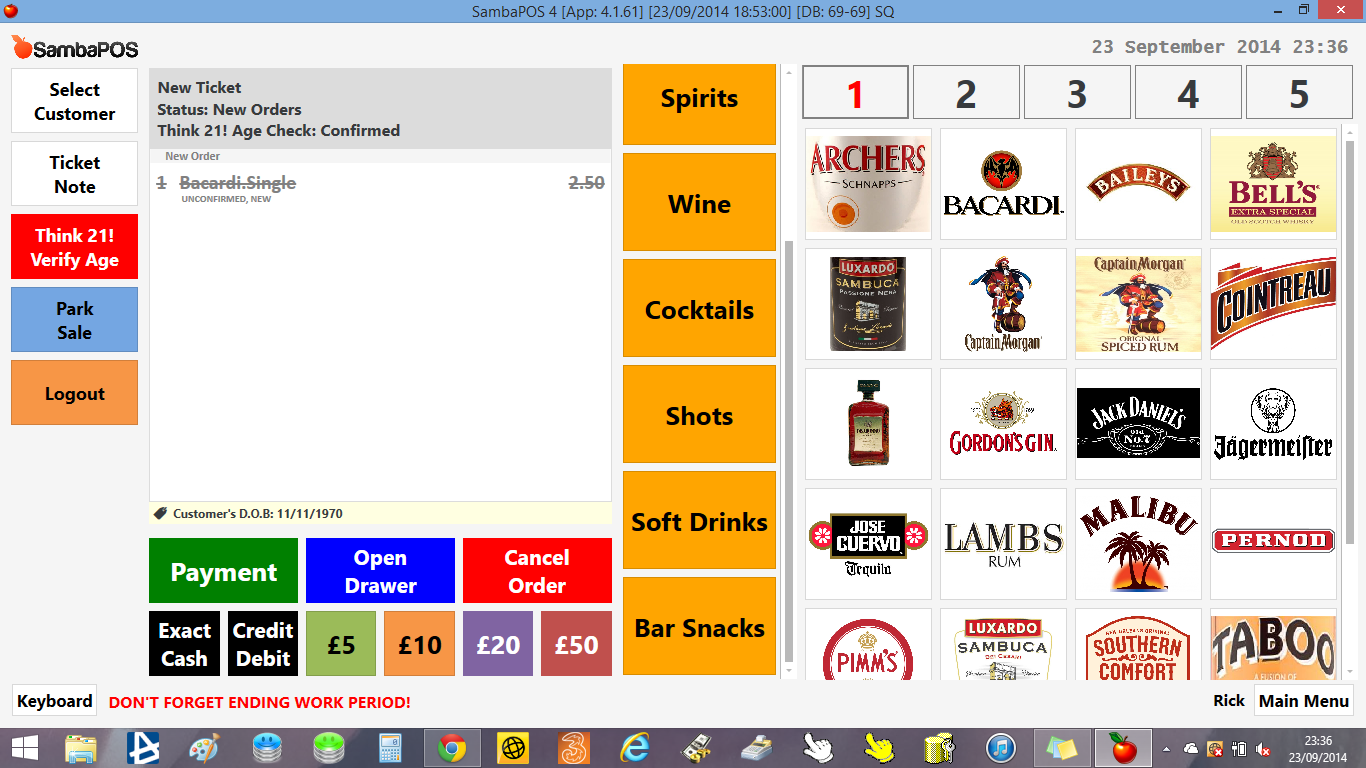
I’ll add a beverage and enter 11 11 1970 as birthday.
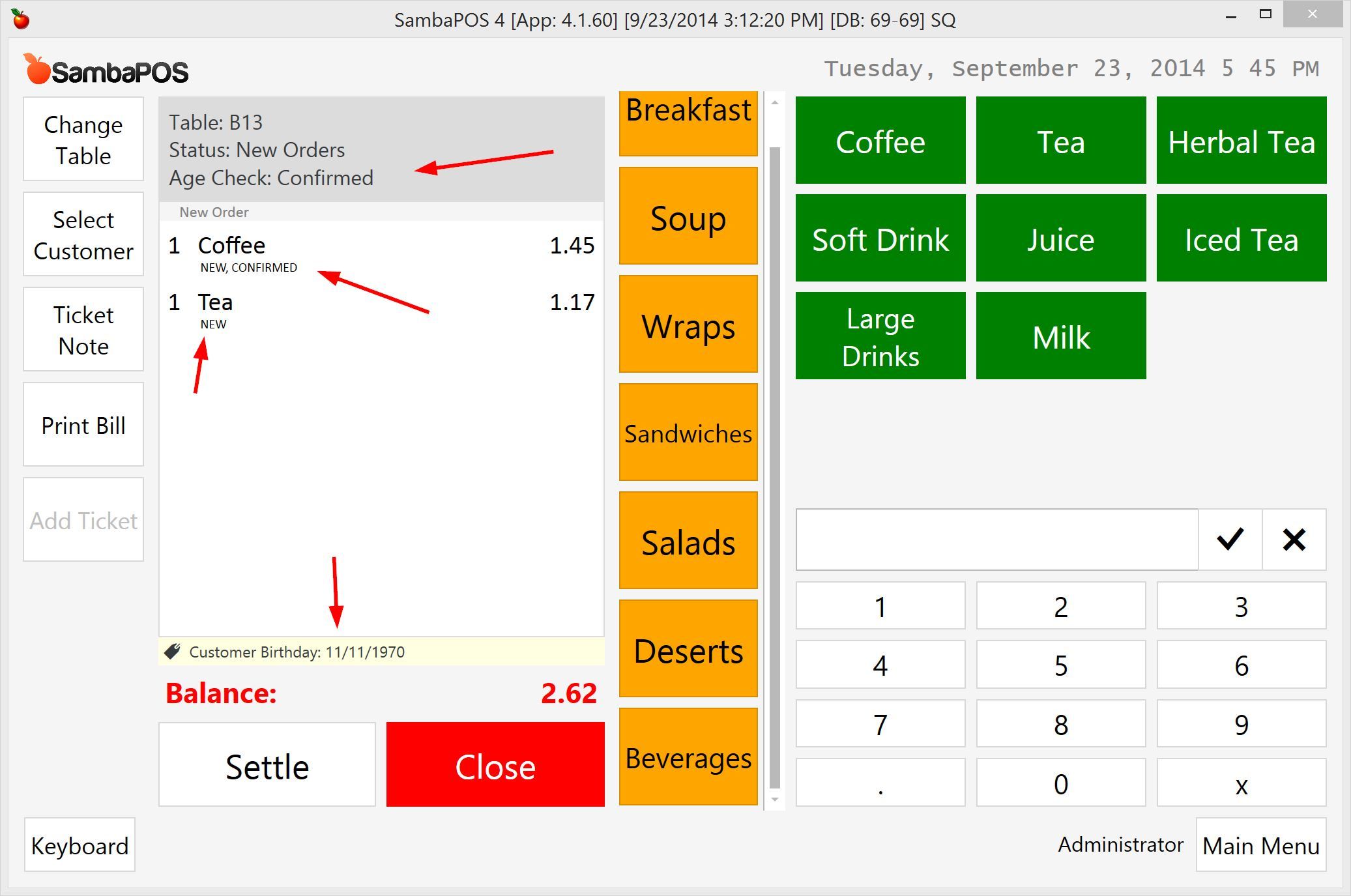
- Ticket’s
Age Checkstatus becomesConfirmed. - Order’s status becomes
Confirmed. - Ticket Tag updates to save Customer’s birthday.
- Adding more beverages does not ask age anymore.
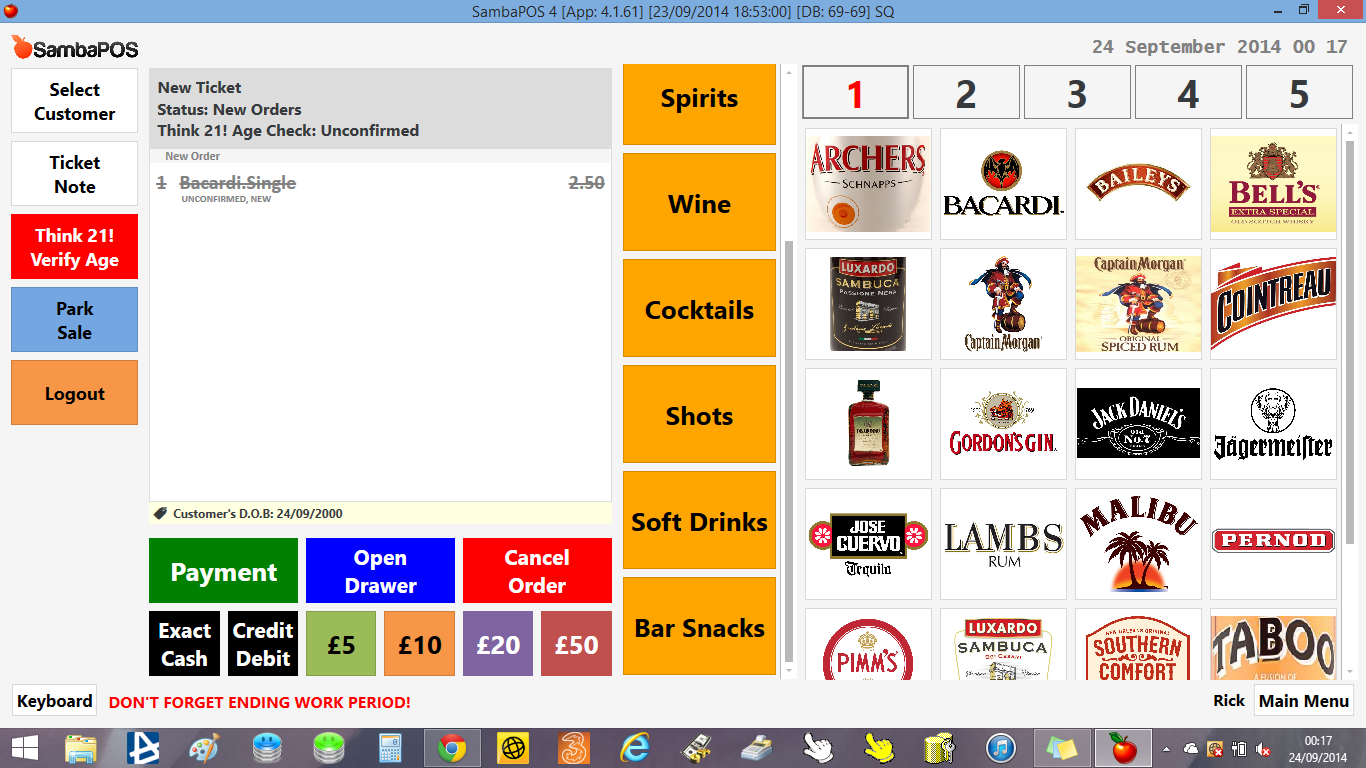
####Case 2
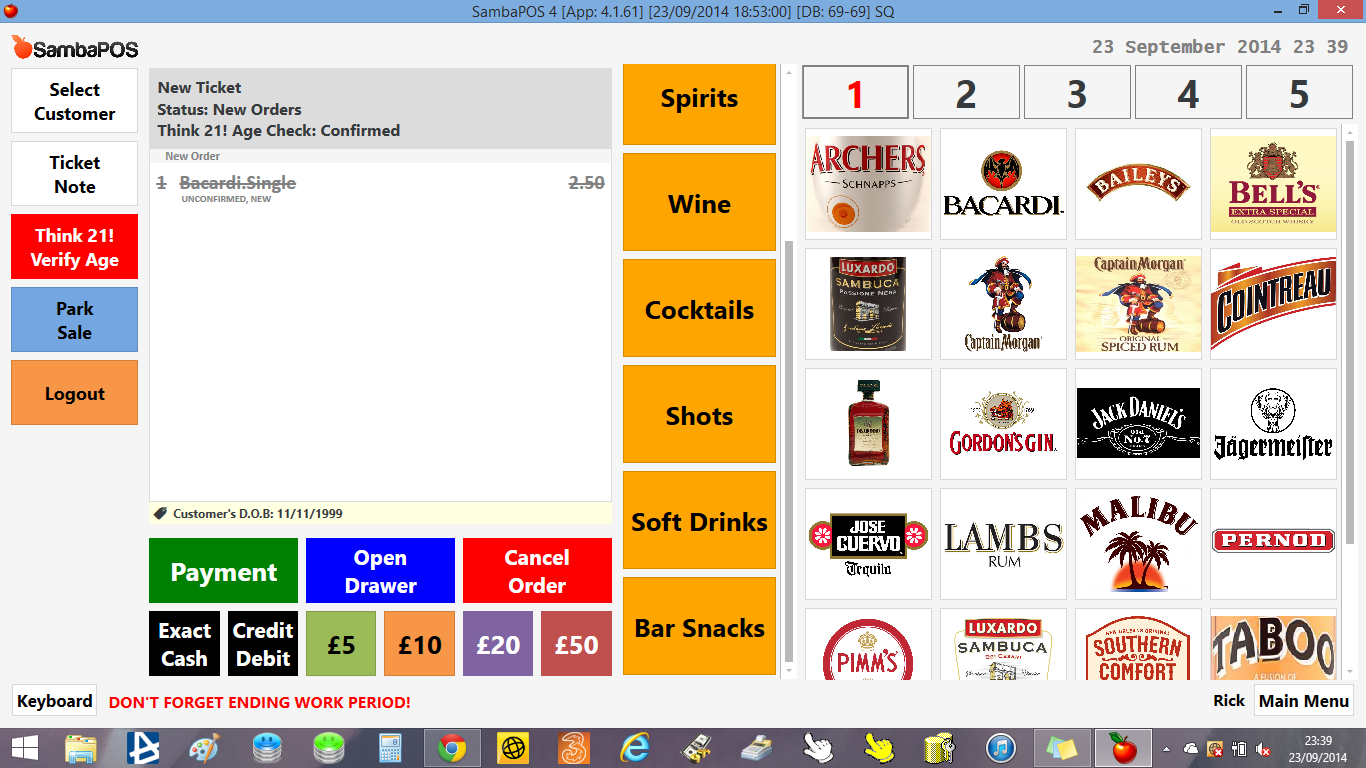
I’ll create another ticket, add a beverage and enter 11 11 1999 as birthday.
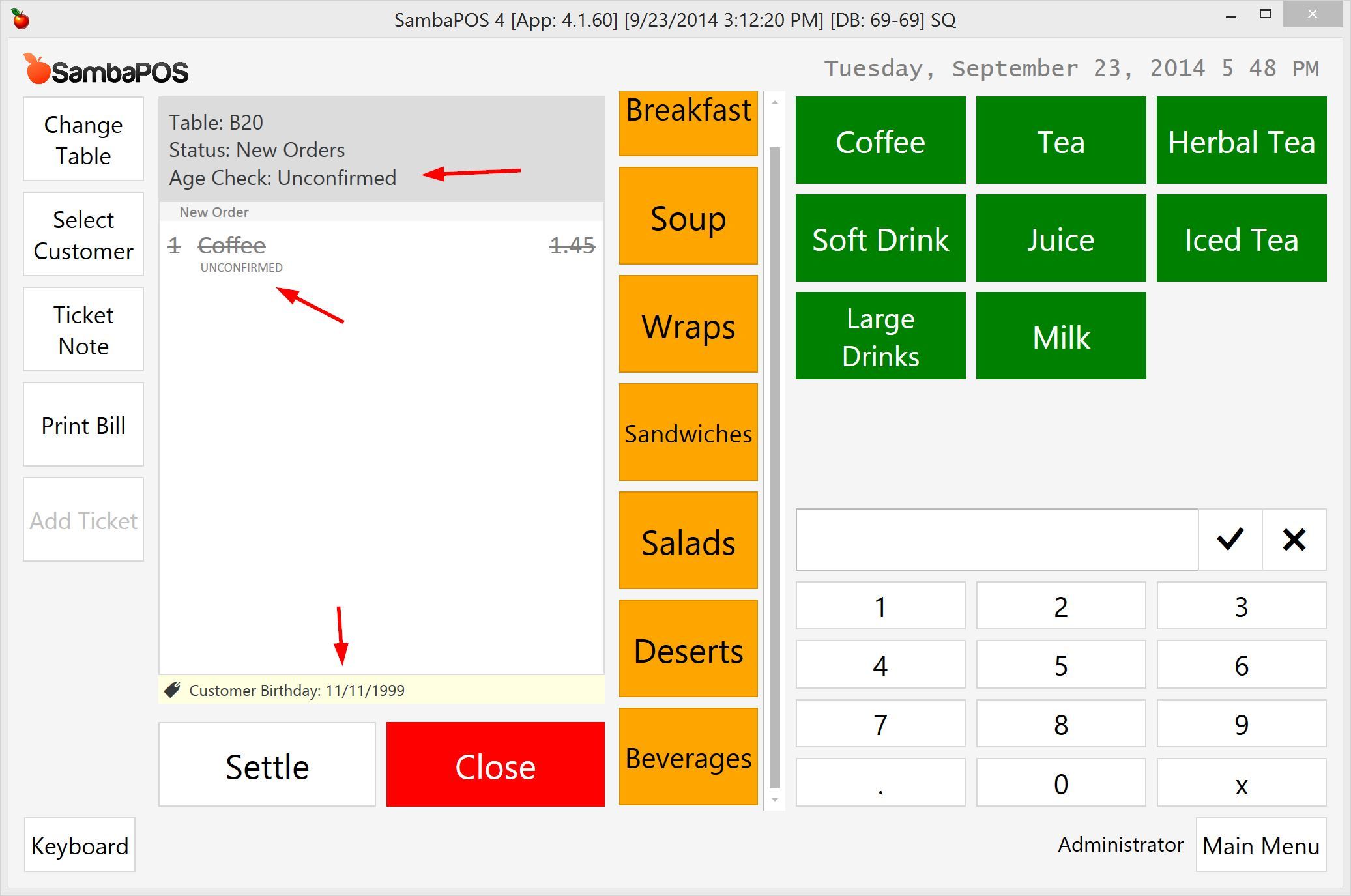
- Ticket’s
Age Checkstatus remainsUnconfirmed. - Order’s status becomes
Unconfirmed. - Order’s
Newstatus cleared so it won’t print to kitchen. - Order is not included in ticket amount and it does not decrease inventory.
- Adding new beverages will ask Birthday again.
###Formatting Birthday Asking Dialog
You’ll notice you can enter any value as birthday. On this step we’ll improve that dialog.
You’ll remember the syntax that triggers the dialog was [?Enter Customer Birthday].

We can change how that dialog works. The general customization syntax is…
[?<parameter name>;<mask>;<default value>;<settings>]
You can define a regular expression to mask the input. This regular expression can be used for date entry.
([1-9]|10|11|12) (0?[1-9]|[12]\d|30|31) \d{2}\d{2}?
It has three parts. First part allows values from 1-9 or 10 or 11 or 12. This part formats month part. Second part formats day part. It allows numbers from 1 to 31 and also single digit days that starts with 0. Third part allows 2 or 4 digit years. When we include that mask the syntax becomes…
[?Enter Customer Birthday;([1-9]|10|11|12) (0?[1-9]|[12]\d|30|31) \d{2}\d{2}?]
;character separates parameter name and mask. If you need to use;character in mask or somewhere else you can define a different character as separator. SambaPOS recognizes first punctuation character as separator. So using it as[parameter#mask]will mean you’re using#character as separator.
()"'/\=?!characters are reserved for title and can not be used as a separator.
We can set a default value for birthday. For example you can use {TICKET TAG:Customer Birthday} tag as default value so previous unconfirmed birthday appears on additional confirmations. If you don’t want to include a default value but configure a setting just skip it by adding an additional separator.
####Settings
The last part of the syntax is used for setting. Settings are single character flags that enables, disables some features.
- O: Displays OK button.
- C Displays Cancel button.
- N Displays Numeric keyboard.
- S Displays Alphanumeric keyboard.
I want to show OK button, hide Cancel button and display a Numeric Keyboard. So the needed setting is ON and the resulting syntax is…
[?Enter Customer Birthday;([1-9]|10|11|12) (0?[1-9]|[12]\d|30|31) \d{2}\d{2}?;;ON]
Notice we’ve skipped default value with double ;; characters. To complete this sample I’ll also include a default value.
[?Enter Customer Birthday;([1-9]|10|11|12) (0?[1-9]|[12]\d|30|31) \d{2}\d{2}?;{TICKET TAG:Customer Birthday};ON]
Now I’ll update rule and change parameter as …

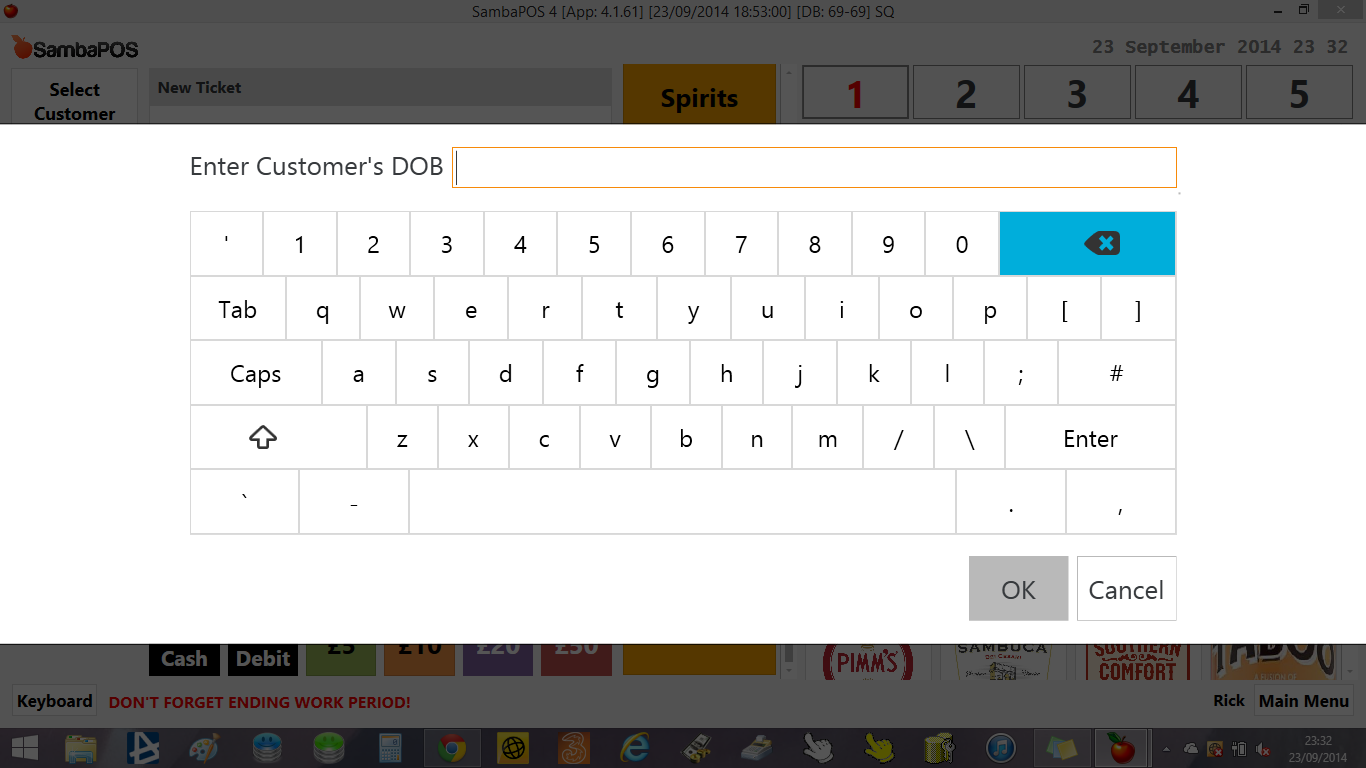
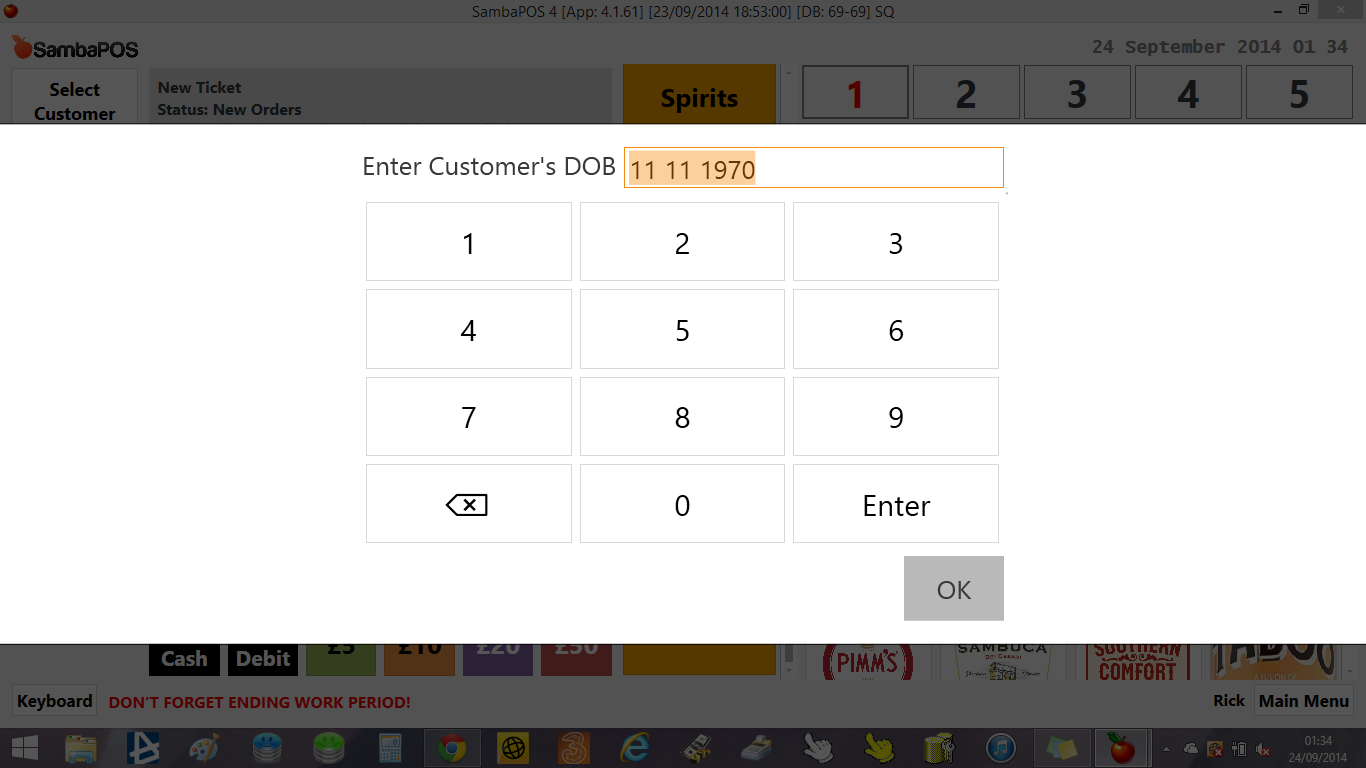
This is the resulting Birthday Asking Dialog 
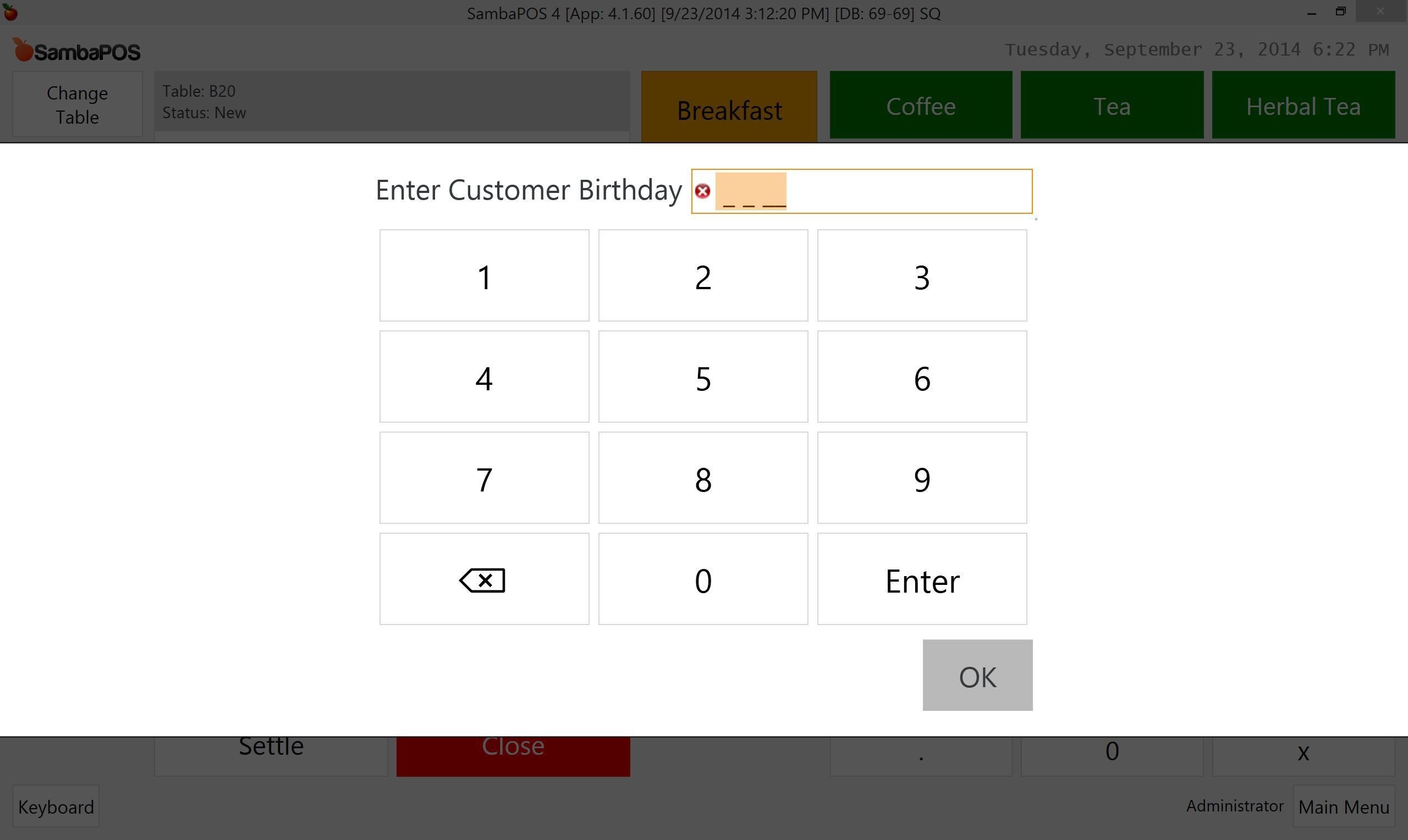
- Numeric Keyboard appeared.
- Cancel button removed.
- Entered value gets automatically formatted as date.
You’ll notice it forces operator to enter a date. However a customer may change his mind won’t tell his birthday. If you want to allow empty values you can surround mask as(<mask>)?Doing it will allow empty values. Otherwise operator should enter a birthday. When surrounded mask becomes
(([1-9]|10|11|12) (0?[1-9]|[12]\d|30|31) \d{2}\d{2}?)?
You’ll remember we handled empty birthday value case with
AC_Update Ticket if no birthday enteredrule.
###Reporting
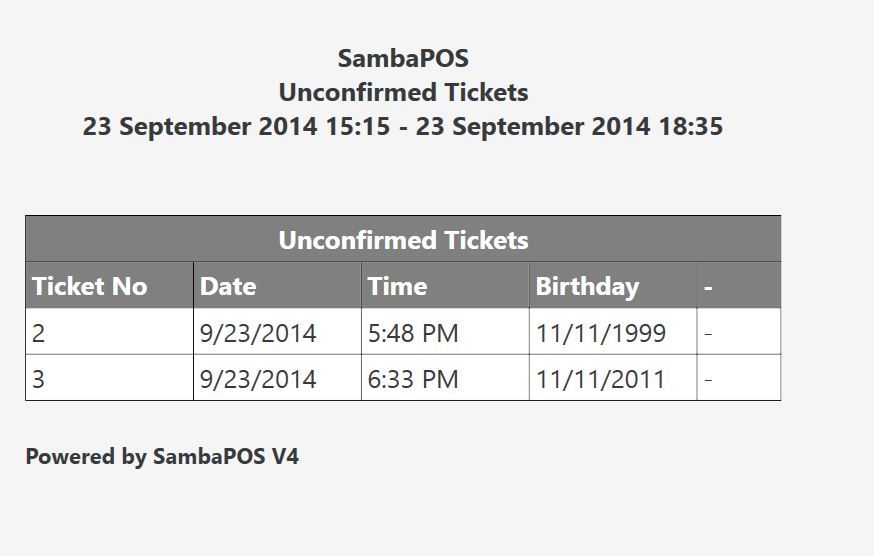
If you have Custom Reports module you can list unconfirmed tickets with that template.
[Unconfirmed Tickets:2,2,2,2,1]
>Ticket No|Date|Time|Birthday|-
{REPORT TICKET DETAILS:TT.Customer Birthday:(TS Age Check=Unconfirmed)}
That appears as…